
Sitecore Marketing Automation Engine Installation Error: Troubleshooting and Solution
Published: 30 October 2026

Introduction
While installing Sitecore Experience Platform (XP) on a local development machine, the installation failed because the Sitecore Marketing Automation Engine service could not start. The installation logs and XConnect logs pointed to an HTTP 403 Forbidden response during XConnect client initialization.
After reviewing the logs and Windows certificate stores, I identified a certificate-store configuration issue in my local environment. Correcting the placement of the affected certificate resolved the issue. This article describes the error, the investigation, and the verification steps.
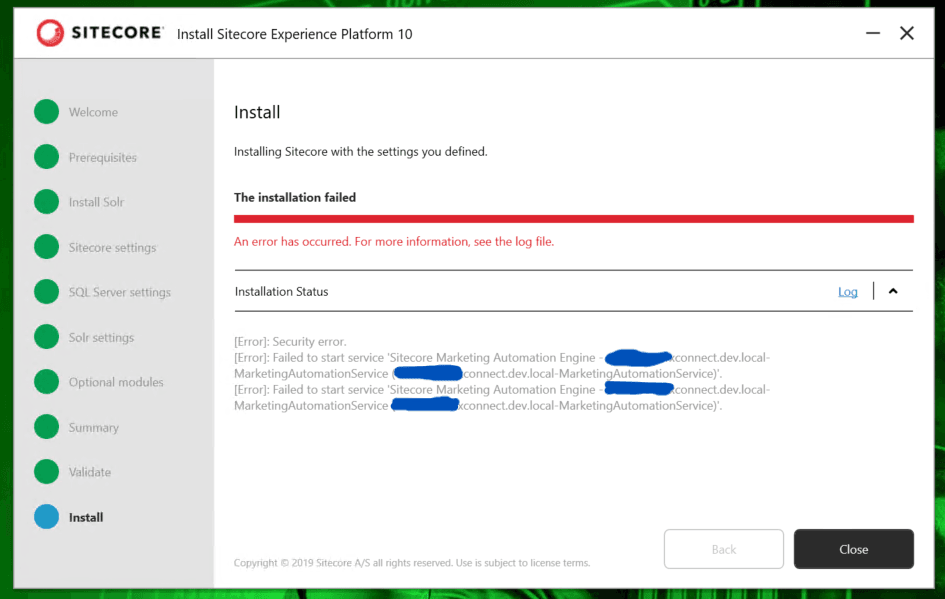
1. Error description
During installation, the wizard displayed an error similar to the following:
[Error]: Failed to start service 'Sitecore Marketing Automation Engine - <XConnectInstance>-MarketingAutomationService'.When I attempted to start the service manually from Windows Services, Windows displayed:
Error 1064: An exception occurred in the service when handling the control request.This indicated that the service failed during startup. The Windows service error was a symptom; the underlying exception in the Marketing Automation Engine log provided the more useful diagnostic detail.
2. Investigate the Marketing Automation Engine logs
Open the Marketing Automation Engine log in the Automation Engine job's log directory. The path depends on the XConnect instance and installation location:
C:\inetpub\wwwroot\<YourXConnectInstance>\App_Data\jobs\continuous\AutomationEngine\App_Data\Logs\The log contained the following error:
Error initializing XConnect client.

Sitecore.XConnect.XdbCollectionUnavailableException:
The HTTP response was not successful: Forbidden
A subsequent exception reported that the XConnect configuration had not been initialized:
System.InvalidOperationException:
This configuration has not been initialized. Please call the initialize method before using it.
The HTTP 403 response was the key finding. Because the XConnect client could not initialize, the Marketing Automation Engine could not complete startup. Therefore, I investigated XConnect communication and certificate configuration instead of treating Error 1064 as an isolated Windows issue.
3. Inspect the Windows certificate stores
I opened PowerShell as Administrator and reviewed these Local Computer certificate stores:
Cert:\LocalMachine\My— Personal certificates, which may include certificates used for client authentication.Cert:\LocalMachine\Root— Trusted Root Certification Authorities.Cert:\LocalMachine\CA— Intermediate Certification Authorities.
To identify certificates in the Root store whose subject and issuer differ, I ran:
Get-ChildItem Cert:\LocalMachine\Root |
    Where-Object { $_.Subject -ne $_.Issuer } |
    Select-Object Subject, Issuer, Thumbprint, NotBefore, NotAfter
This diagnostic filter can help identify certificates that may be intermediate certificates. It does not, by itself, prove that a certificate is in the wrong store. I reviewed each candidate's subject, issuer, thumbprint, validity dates, and intended role before making a change.
4. Root cause and resolution
In my local environment, the issue was resolved by correcting the store placement of the affected Sitecore-related certificate. The certificate was moved from the Local Computer Root store to the Local Computer CA store, and its thumbprint was used to verify the certificate.
Source: Cert:\LocalMachine\Root\
Destination: Cert:\LocalMachine\CA\
Why does certificate-store placement matter?
- The Root store is intended for trusted root certification authorities.
- The CA store is intended for intermediate certification authorities.
- The My store commonly holds personal certificates, including certificates used for client authentication.
An intermediate certificate placed incorrectly in the Root store can contribute to certificate-chain validation problems in some configurations. However, do not move certificates solely because they appear in the Root store. Verify the certificate chain and intended role first. A genuine self-signed root certificate should not be moved to the CA store as a general troubleshooting step.
5. Verify a certificate by thumbprint
Before changing a certificate store, identify the exact certificate by its thumbprint. Replace the placeholder below with the thumbprint of the certificate you have verified.
$thumbprint = "YOUR_CERTIFICATE_THUMBPRINT"

$stores = @(
    "Cert:\LocalMachine\Root",
    "Cert:\LocalMachine\CA",
    "Cert:\LocalMachine\My"
)

foreach ($store in $stores) {
    Get-ChildItem $store -ErrorAction SilentlyContinue |
        Where-Object { $_.Thumbprint -eq $thumbprint } |
        Select-Object @{Name="Store";Expression={$store}},
            Subject, Issuer, Thumbprint, NotBefore, NotAfter
}
Use the output to confirm where the certificate exists and whether it is within its validity period. Do not proceed if the certificate's role or identity is uncertain.
6. Move a verified intermediate certificate safely
The following example is only for a certificate already verified to be an intermediate certificate. Run PowerShell as Administrator and replace the placeholder with the exact thumbprint. This example stops if the certificate is self-issued and checks whether it already exists in the CA store.
$thumbprint = "YOUR_VERIFIED_INTERMEDIATE_THUMBPRINT"

$rootPath = "Cert:\LocalMachine\Root\$thumbprint"
$caPath   = "Cert:\LocalMachine\CA\$thumbprint"

$cert = Get-Item $rootPath -ErrorAction Stop

if ($cert.Subject -eq $cert.Issuer) {
    throw "Certificate is self-issued. Do not move it automatically."
}

$existing = Get-Item $caPath -ErrorAction SilentlyContinue
if (-not $existing) {
    Move-Item -Path $rootPath -Destination "Cert:\LocalMachine\CA"
}

Get-Item $caPath | Select-Object Subject, Issuer, Thumbprint, NotAfter
Important: subject and issuer equality is only a basic safeguard, not a complete certificate-chain validation. If the certificate is a genuine root, a client certificate, expired, or otherwise uncertain, stop and investigate rather than running the move command.
7. Retest the installation
After correcting the certificate placement, I retested the service and reviewed the logs. Use this checklist:
- Confirm that the certificate is in the intended Windows certificate store.
- Confirm the thumbprint, subject, issuer, and validity dates.
- Verify that the XConnect endpoint is reachable over HTTPS.
- Review the XConnect IIS logs and Marketing Automation Engine logs for any new errors.
- Retry starting the service or rerun the failed installation step, as appropriate.
If the service still returns HTTP 403 Forbidden, continue investigating the XConnect client certificate, certificate thumbprints in connection strings, certificate permissions, and XConnect IIS configuration. Certificate-store placement is one possible cause of a 403 response, not the only possible cause.
Conclusion
The Sitecore installation failed because the Marketing Automation Engine could not initialize its XConnect client. The logs showed an XDB Collection HTTP 403 Forbidden response, followed by an initialization exception and Windows service Error 1064. In my environment, inspecting the Windows certificate stores and correcting the placement of the affected certificate resolved the issue.
Troubleshooting note
The certificate-store change described here reflects the resolution observed in this environment. Because an HTTP 403 can have multiple causes, validate the certificate chain and XConnect configuration before applying the same change to another environment.

Keyur Nayi- Technical lead - ADDACT
Technical lead - ADDACT
Keyur is a Technical Lead at Addact with 9+ years of experience in enterprise CMS and software engineering. He is certified in Sitecore XM Cloud, OrderCloud, Sitecore 10 .NET, and SitecoreAI CMS for Developers (2025), specializing in scalable, cloud-ready and AI-driven implementations.
His technical stack includes ASP.NET/Core, C#, MVC, jQuery, and Azure/AWS, enabling high-performance, cross-platform digital solutions.