
The Practical Guide to use Triggers in Sitecore Content Hub
Published: 23 April 2026
Introduction
Sitecore Content Hub is built on an event-driven architecture. Every time a user or the system creates, updates, or deletes an entity — an asset, a content item, a job, or any other record — the platform generates a corresponding event. Triggers are the mechanism that allows administrators and implementers to intercept these events and automatically execute a defined set of actions in response.
Triggers automatically execute a set of actions after specific events and under specific conditions. They are evaluated for every create, update, and delete event that occurs in Sitecore Content Hub and are executed asynchronously to prevent delays.
Triggers sit at the heart of Content Hub's automation layer and are used every day to:
- Automatically react to content lifecycle changes without manual intervention.
- Connect Content Hub to external systems such as Azure Service Bus, event hubs, and API endpoints.
- Enforce business rules and data consistency across entities.
- Drive workflow state machine transitions automatically.
- Support integration with Sitecore XM/XP, Sitecore Commerce, and third-party platforms.
Key principle: A trigger does not execute its actions just because an event occurred. The actions execute only if all configured conditions are met. This two-stage model — event matching followed by condition evaluation — gives administrators precise control over when automation runs.
Purpose of Triggers
The primary purpose of triggers is to:
- Automate repetitive operational processes
- Enforce business rules during content lifecycle changes
- React to data modifications in real time
- Integrate Content Hub with external systems
- Execute custom logic when business events occur
- Reduce manual intervention in workflow-based processes
How Triggers Fit into Content Hub Automation
Content Hub provides a three-layer internal automation framework that works entirely inside the platform without requiring external infrastructure:
| Layer | Component | Role |
| 1 | Scripts | Custom C# logic compiled and hosted inside Content Hub. Written in the internal IDE. |
| 2 | Actions | Configured tasks (API calls, messaging, reporting, workflow). Link scripts to executable units. |
| 3 | Triggers | Event listeners that decide when and under what conditions Actions are executed. |
Out-of-the-Box Triggers
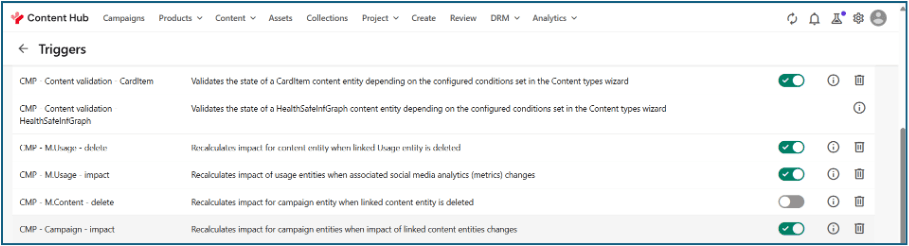
Sitecore Content Hub ships with many pre-configured triggers out of the box. These cover common automation scenarios such as asset processing, workflow management, and system housekeeping. Administrators can view these on the Triggers page alongside any custom triggers that have been created. The description field on each trigger explains its purpose, making it easy to understand the platform's default behaviour before creating anything new.
Accessing the Triggers Page
The Triggers management page is accessible to users with Superuser rights or those granted the Manage. Triggers permission through their user group policy.
Navigation
To open the Triggers page:
Content Hub Menu Bar => Manage => Triggers
The Triggers list page displays all registered triggers, both out-of-the-box and custom, with the following summary information for each:
- Trigger name
- Description
- Objective (the event type the trigger responds to)
Enabled / Disabled status
To inspect a specific trigger without editing it:
- On the Triggers page, locate the trigger you want to review.
- Click the trigger name, or click View details on the right side of the trigger row.
- The trigger details page opens, showing the General information, Conditions, and Actions tabs.
Trigger Architecture
A trigger is composed of multiple configuration layers that together define its behaviour. the configuration page is organized into three tabs: General, Conditions, and Actions. Each tab handles a distinct aspect of the trigger's behaviour.
General: Defines the trigger's identity (name and description), the event it listens to (Objective), and how its actions are executed (Execution Type).
Conditions: Specifies which entity definitions to watch, which property/relation changes qualify, and how conditions are logically combined.
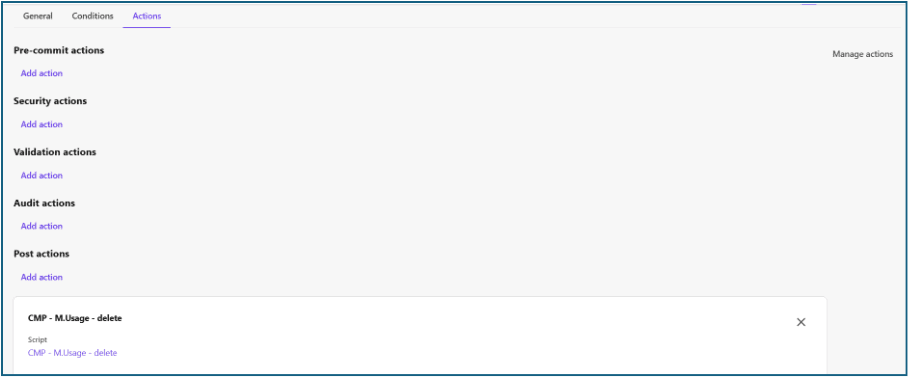
Actions: Specifies which pre-created Actions should run when the trigger fires, and in which execution phase each action runs
General Tab
The General tab is where you define the trigger's basic identity and its core operational settings.
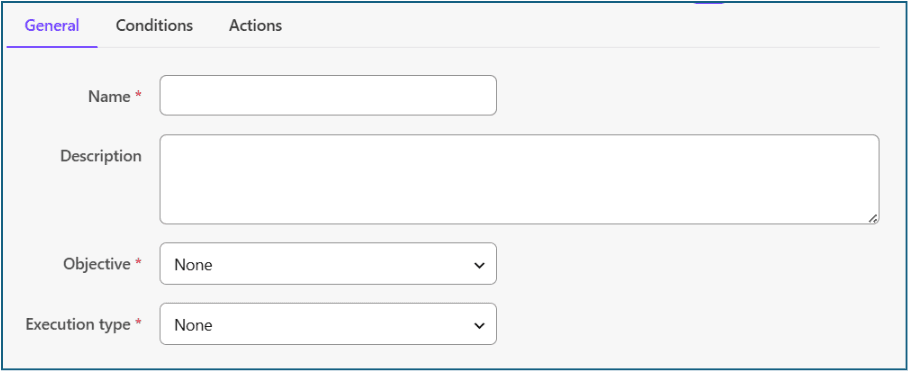
Name: A unique identifier for the trigger within the platform. Choose a name that clearly reflects the event and the action being taken.
Description: A human-readable explanation of what the trigger does, when it fires, and why. A well-written description is essential for maintenance
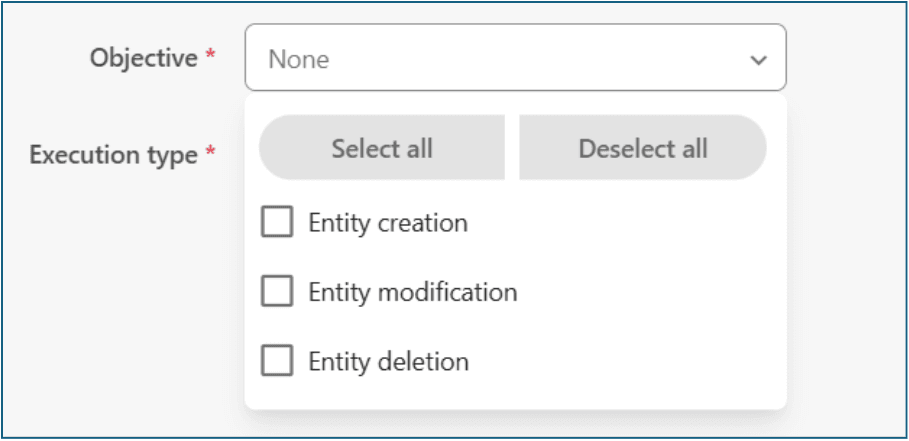
Objective (The Event Type): The Objective field defines the category of platform event the trigger will respond to. Sitecore Content Hub supports three trigger event types:
- Entity Creation: Fires when a new entity instance is saved to the platform for the first time.
- Entity Modification: Fires when an existing entity's properties or relations are updated.
- Entity Deletion: Fires when an entity is removed from the platform.
A single trigger can react to multiple objectives simultaneously. For example, you can configure a trigger to respond to both Entity Creation and Entity Modification, so it fires any time an entity is either newly created or subsequently changed.
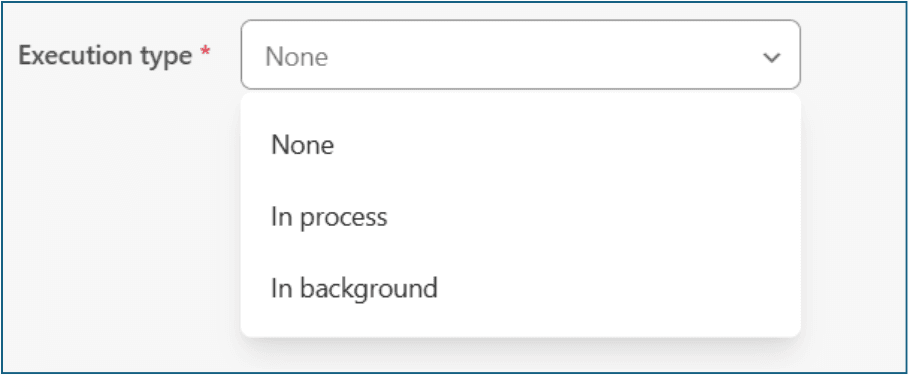
Execution Type: The Execution Type determines the method by which the trigger's actions are executed once the trigger fires and conditions are met. There are two execution types:
- In Process (Synchronous): When Execution Type is set to In Process, the trigger's actions execute in real time, synchronously, as part of the same thread as the triggering operation. The user who performed the action waits for the trigger's actions to complete before receiving a response. In Process is the only execution type that supports the full range of execution phases (Pre-commit, Validation, Security, Audit, and Post). It is specifically used when the trigger needs to intercept and potentially modify or reject data before it is committed to the database.
- In Background (Asynchronous): When Execution Type is set to In Background, the trigger's actions are dispatched to a background job queue and executed asynchronously. The user does not wait for the actions to complete — they receive their response immediately after the triggering event, and the background job runs independently. In Background execution only supports the Post execution phase. It is the correct choice for the vast majority of trigger scenarios, including sending data to external systems, generating reports, running complex metadata operations, or starting workflow transitions.
Conditions Tab
Conditions define the logical rules that must evaluate to true before the trigger executes.
Conditions act as a filtering layer between the raw system event and action execution.
An entity definition specifies which type of entity the trigger should observe. You add entity definitions by clicking Add definition on the Conditions tab and selecting from the list of available definitions, such as:
- Asset (M.Asset): for digital assets
- Content (M.Content): for content items
- Job (M.Job): for background jobs
- Public Link (M.PublicLink): for public download links
- Product (M.PCM.Product): for product entities (if PCM is enabled)
- Collection (M.Collection): for asset collections
- Any other custom entity definition configured in your schema
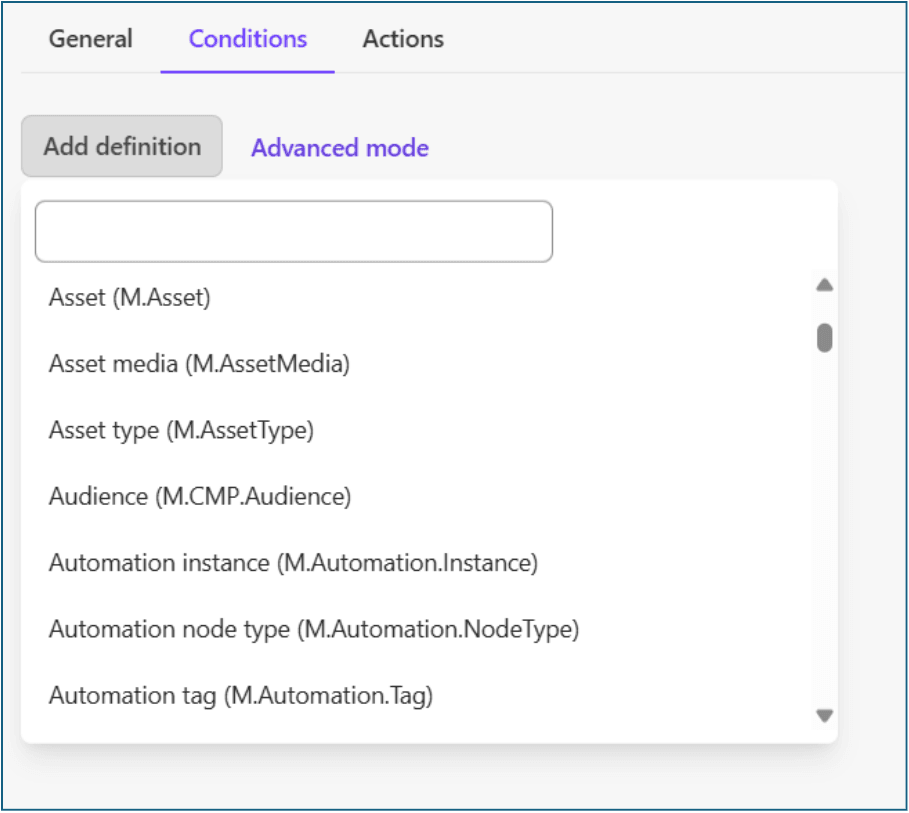
A single trigger can observe multiple entity definitions simultaneously. Each definition has its own independent set of field-level conditions.
Conditional Statements
Conditional statements are the individual filter rules applied to a specific entity definition. The following lists the most common conditional clauses available in the Content Hub.
- has changed: The property's value has been modified during this save operation. This is the most commonly used clause for property-level triggers
- equals: The property's current value matches a specific value you define. Useful for triggering on a known state, such as a life cycle state being set to 'Approved'.
- not equals: The property's current value does not match a specific value.
- is empty: The property has no value set. Useful for detecting missing required fields.
- is not empty: The property has a value set.
- added item is not empty: Applies to relation properties. Fires when one or more items have been added to the relation. Used to detect when an entity is linked to another.
- removed item is not empty: Applies to relation properties. Fires when one or more items have been removed from the relation. Used to detect when a link is broken
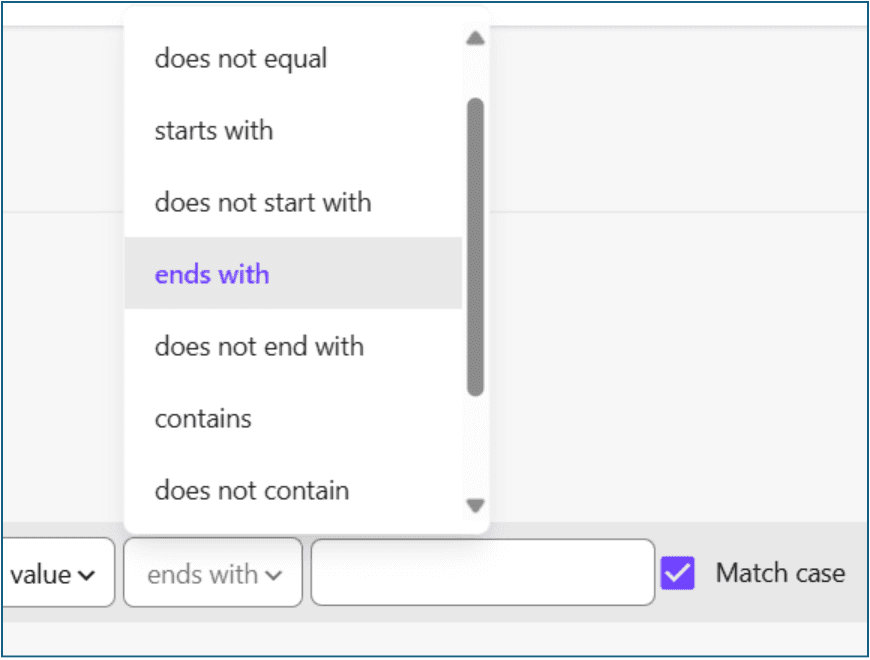
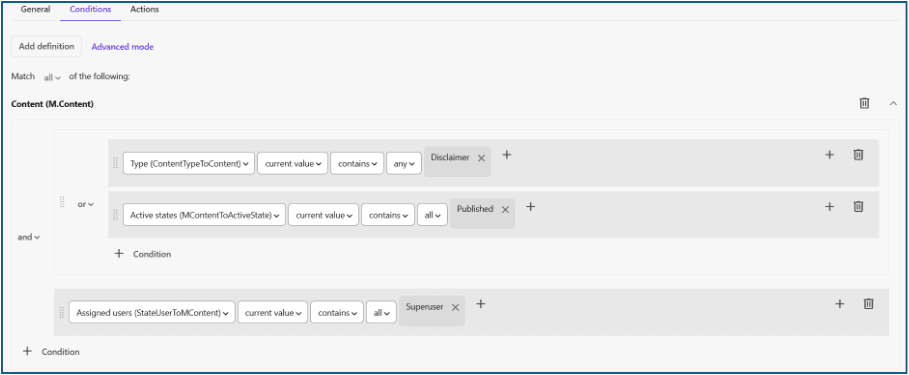
When you add multiple conditional statements under the same entity definition, you combine them using logical operators OR and AND.
Logical operators combine conditions at the same grouping level. You can create sub-groups within a definition to build more complex logical expressions. Each sub-group has its own logical operator, and sub-groups can be nested within other sub-groups
Actions Tab
The Actions tab is where you attach the pre-created Actions that the trigger will execute when it fires and conditions are satisfied. Actions are separate, reusable components configured in Manage > Actions. We can attach them to a trigger. we can’t create them from within the trigger.
Adding Actions to a Trigger
- On the trigger configuration page, click the Actions tab.
- In the appropriate execution phase section (Pre-commit, Validation, Security, Audit, or Post for In Process; Post for In Background), click Add action.
- A search dialog opens. Search for the action you want to attach by name.
- Select the action and confirm. It is added to the phase.
- Repeat for each additional action you want this trigger to execute.
Action Types — Overview
Content Hub provides several built-in action types. Each is configured in Manage > Actions and can then be attached to one or more triggers.
| Action Type | Purpose |
| Action Script | Executes a custom C# script written and compiled inside Content Hub's internal IDE. |
| API Call | Sends an HTTP or HTTPS request to an external endpoint (webhook). No custom code required — configured entirely in the UI. |
| Azure Event Hub | Sends a message to a configured Azure Event Hub instance using a connection string. |
| Azure Service Bus | Sends a message to an external Azure Service Bus queue or topic. |
| M Azure Service Bus | Sends a message to an internal Sitecore-managed Azure Service Bus. Connection string is provided automatically — no external setup needed. |
| Print Entity Generation | Generates a PDF or print-ready output from a configured print template and entity data. |
| Reporting Channel | Sends data to a configured reporting channel for analytics and dashboard use cases. |
| Start State Machine | Initiates or advances a state machine (workflow) transition for the triggering entity or a related entity. |
Trigger Design Best Practices
Keep Triggers Focused: Each trigger should serve a single business responsibility.
Prefer Declarative Conditions: Keep logic in trigger conditions where possible. Avoid overloading action scripts with filtering logic.
Externalize Heavy Processing: Long-running/complex operations should be delegated to Queues, Azure Functions, Middleware, Integration Services.
Prevent Recursive Triggering: Be cautious when actions modify entities that may re-trigger same trigger. Implement recursion safeguards.
Summary
Sitecore Content Hub Triggers provide a robust event-driven automation framework that enables organizations to react automatically to content and metadata lifecycle events.
They are essential for implementing scalable automation, workflow orchestration, and system integrations within enterprise Content Hub ecosystems.

Mitesh Patel || Chief Technology Officer (CTO) | ADDACT
Sitecore AI Certified || XMCloud || OrderCloud Certified
Mitesh Patel is the Chief Technology Officer (CTO) at Addact with 12+ years of experience in enterprise CMS, digital experience platforms, and cloud-native application development. He specializes in Sitecore, Contentful, Strapi, Kentico, Umbraco, Contentstack, and .NET, helping organizations build scalable, secure, and future-ready digital solutions through modern CMS, headless architectures, AI-driven experiences, and cloud technologies.