
Auto-Calculate Estimated Reading Time in Sitecore Content Hub using Scripting
Published: 27 August 2026

If you have ever built an article or blog experience in Sitecore Content Hub, you have probably wanted a small "X mins read" badge somewhere near the title. It's a tiny UX detail, but it tells readers what they're signing up for before they commit to scrolling.
The catch: reading time isn't something an editor should type in manually. It needs to be derived from the actual content every field, every linked block and it needs to update automatically whenever that content changes. Our script calculations are based on an average reading speed of 120 words per minute.
What the script needs to do
At a high level, the script runs against a content entity (example: - blog article) and needs to:
- Confirm the entity is a selected content-type item.
- Read the plain text/rich-text fields that live directly on it.
- Follow any reference fields to pull in text from linked entities too (like an Image details card, an FAQ block or an Accordion Item).
- Strip out HTML markup from everything collected and count the words.
- Convert word count into minutes, using an average reading speed.
- Write that value back onto the entity as Estimated Reading Time
Let's understand it step by step.
Step 1: Identify the content type
Content Hub scripts run against a target entity, but they don't inherently know what kind of content item they're looking at. The script figures this out by walking the ContentTypeToContent relation up to the parent content-type definition and reading its identifier:
var entity = Context.Target as IEntity; var contentEntityId = entity.Id; const string ContentTypeToContent = "ContentTypeToContent"; var _contentTypeParent = entity.GetRelation<IChildToOneParentRelation>(ContentTypeToContent); var _contentTypeParentID = _contentTypeParent.GetId(); var _parentEntity = await MClient.Entities.GetAsync(_contentTypeParentID.Value); var _contentType = _parentEntity.Identifier; |
At the end of this block, _contentType holds a value like M.ContentType.BlogStyle. Everything downstream branches off that string.
Step 2: Map the content type to its fields
This is the part that's easy to overlook but does most of the heavy lifting. Every content type in Content Hub stores its fields with a naming convention like {ContentType}_{FieldName} for example, BlogStyle_Title. So, the script keeps a lookup table: for a given content type, which field names hold text worth counting, and which fields are links to other entities?
For Blog Style, kept to one field of each kind for clarity:
var CType = ""; var contentItemFields = new List<string> { }; var contentReferenceFields = new List<string> { }; var allContent = ""; if (_contentType == "M.ContentType.BlogStyle") { CType = "BlogStyle"; // Plain fields that live directly on the article contentItemFields = new List<string> { "Title, Description, CarouselTitle, ImageTitle" }; // Fields that link out to other entities contentReferenceFields = new List<string> { "CarouselItems, ImgItems, AccordionItems" }; // reference field } |
- contentItemFields holds the names of ordinary fields the ones whose value sits directly on the BlogStyle entity. Introduction is a rich-text field here; a real script would list several more of these (title, Description, and so on), but they're all read the exact same way, so one is enough to show the pattern.
- contentReferenceFields holds the names of fields that don't store text themselves, they store a link to one or more other entities. CarouselItems, ImageItems, and AccordionItems are that kind of fields: they might point to a handful of short callout cards that appear alongside the article. To count their words, the script must go fetch each linked entity separately.
Step 3: Read the plain fields
With the field list built, the script loops through contentItemFields, pulls each field's raw value off the entity, and appends it to a running string:
foreach (var Field in contentItemFields) { var referenceItems = entity.GetPropertyValue<string>($"{CType}_{Field}"); allContent = allContent + " " + referenceItems; } |
By the end of this loop, allContent contains the article's own text still full of rich-text HTML markup at this point (<p>, <strong>, <ul>, etc.), because Content Hub rich-text fields store their content as HTML.
Step 4: Follow reference fields to linked entities
This is the part BlogStyle demonstrates that a reference-free content type can't: some of the "content" a reader sees isn't stored on the article itself it's stored on separate, reusable entities that the article merely links to. The script has to follow that link, identify what kind of entity is on the other end, and read its fields too.
foreach (var referenceField in contentReferenceFields) { var referenceItems = entity.GetRelation<IChildToManyParentsRelation>($"Reference_{CType}_{referenceField}"); if (referenceItems != null) { var referenceItemIds = referenceItems.Parents; foreach (var id in referenceItemIds) { // Fetch the linked entity in full var referenceItem = await MClient.Entities.GetAsync(id, EntityLoadConfiguration.Full); // Work out what content type that linked entity is var _refContentTypeParent = referenceItem.GetRelation<IChildToOneParentRelation>(ContentTypeToContent); var _refContentTypeParentID = _refContentTypeParent.GetId(); var _refParentEntity = await MClient.Entities.GetAsync(_refContentTypeParentID.Value); var _refContentType = _refParentEntity.Identifier; var refCType = ""; var refcontentItemFields = new List<string> { }; // Map the linked entity's content type to its own field(s) if(_refContentType == "M.ContentType.ImageCardItem") { refCType = "ImageCardItem"; refcontentItemFields = new List<string> {"Title", "Content" }; } if(_refContentType == "M.ContentType.FAQ") { refCType = "FAQ"; refcontentItemFields = new List<string> {"Question", "Answer" }; } if(_refContentType == "M.ContentType.CarouselItem") { refCType = "CarouselItem"; refcontentItemFields = new List<string> {"Title", "Content" }; } if(_refContentType == "M.ContentType.AccordionItem") { refCType = "AccordionItem"; refcontentItemFields = new List<string> {"Title", "Content" }; } } } } |
Walking through what's happening here:
- RelatedHighlights doesn't hold text it holds a relation, Reference_BlogStyle_CarouselItem, whose Parents are the IDs of the linked entities.
- For each linked ID, the script fetches the full entity and just like in Step 1, climbs back up to ContentTypeToContent to find out what kind of entity it is. A reference field can technically point to more than one content type, so this check matters.
- Once it knows the linked entity is a CarouselItem, it knows that entity's own field naming convention (CarouselItem_Title) and reads that field the same way Step 3 read the article's own fields.
- That text gets appended to the same allContent string, so a highlight card's copy counts toward the total reading time exactly as if it had been typed straight into the article.
Step 5: Strip markup and count words
Raw HTML isn't something you want to run a word count against directly <div class="wrapper"> shouldn't count as three words. So, the script cleans the combined string before counting:
public (int Minutes, int WordCount) GetEstimatedReadingTime(string htmlFragment, int wordsPerMinute = 120) { if (string.IsNullOrWhiteSpace(htmlFragment)) return (0, 0); // Strip <script> and <style> blocks entirely string noScript = Regex.Replace(htmlFragment, "<script[^>]*>[\\s\\S]*?</script>", "", RegexOptions.IgnoreCase); string noStyle = Regex.Replace(noScript, "<style[^>]*>[\\s\\S]*?</style>", "", RegexOptions.IgnoreCase); // Strip remaining HTML tags string noTags = Regex.Replace(noStyle, "<.*?>", " "); // Decode the common HTML entities string decoded = noTags .Replace(" ", " ") .Replace("&", "&") .Replace(""", "\"") .Replace("<", "<") .Replace(">", ">"); int wordCount = CountWords(decoded); int readingTimeMinutes = (int)Math.Ceiling(wordCount / (double)wordsPerMinute); return (readingTimeMinutes, wordCount); } public int CountWords(string text) { if (string.IsNullOrWhiteSpace(text)) return 0; var words = Regex.Matches(text, @"\b\w+\b"); return words.Count; } A few things worth calli |
ng out:
- Tags go first; entities go second. Stripping tags with a regex before decoding entities avoids accidentally turning <div> into a real tag that then gets stripped along with actual content.
- \b\w+\b is the word counter. It's a simple approach; it won't perfectly handle hyphenated words or contractions but it's more than accurate enough for an estimate.
- 120 words per minute is the default rate. That's on the slower end intentionally, since content that mixes long-form copy with reference callouts tends to be read more carefully than casual text. You can tune this rate per content type if some formats are lighter reading than others.
- Math.Ceiling rounds up. A 121-word article still reads as "2 mins," not "1 min" better to slightly overestimate than to promise a faster read than reality.
Step 6: Write the value back and save
Finally, the computed minutes get written onto the entity, and the entity is saved:
var totalReadingTime = GetEstimatedReadingTime(allContent, 120); entity.SetPropertyValue("EstimatedReadingTime", $"{totalReadingTime.Minutes.ToString()} mins read"); await MClient.Entities.SaveAsync(entity).ConfigureAwait(false); |
That single field, EstimatedReadingTime, is what your front-end template renders next to the byline.
Till this, our script part is done. Now we want this script to execute when a new blog is created, or an existing blog gets updated. So, for that, we need to create a trigger and an action also.
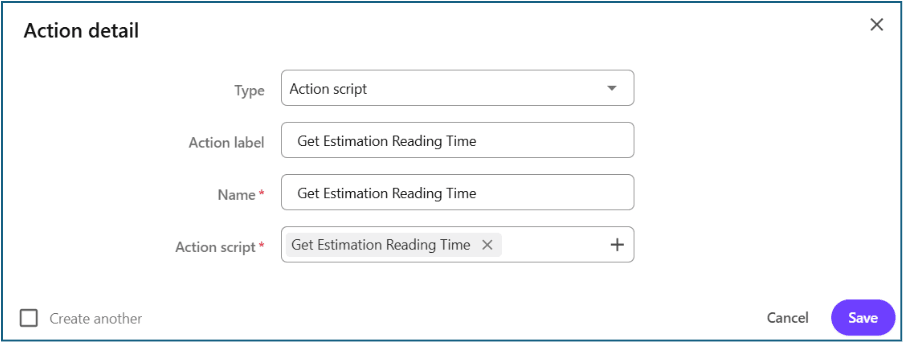
Create an Action
To run this script, we must create an action which will be triggered when a blog gets updated.
1.Go to Manage > Actions.
2. Click New action.
3. Fill in:
- Name — e.g., Get Estimation Reading Time.
- Label — a human-readable description, e.g., Get Estimation Reading Time action.
- Type — select Action Script.
- Action Script — pick the script we just created.
4. Click Save.
Create a trigger to fire the action
Triggers listen for events (entity created, entity modified, etc.) and, when conditions match, fire an action.
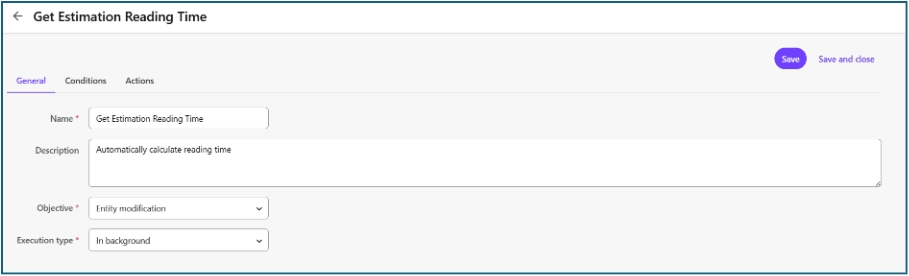
1. Go to Manage > Triggers, then click new trigger.
2. On the General tab:
- Name — e.g., Get Estimation Reading Time.
- Description — e.g., Automatically calculate reading time.
- Objective — check Entity modification.
- Execution type — In background.
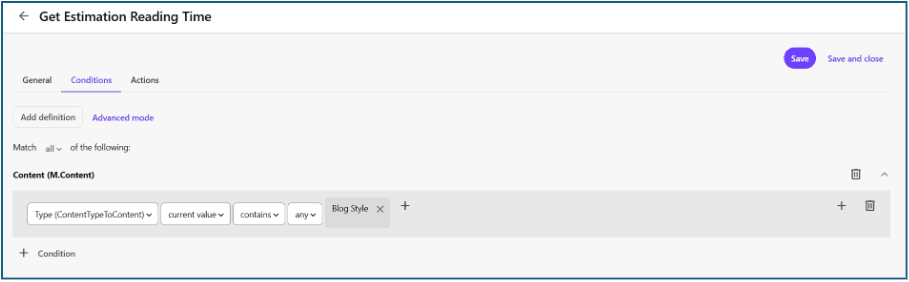
3. On the Conditions tab:
- Add a definition for the relevant entity (e.g., Content (M.Content)).
- Add a condition to scope the trigger to the right content type, e.g., Type contains "Blog".
- Save, then Activate the trigger.
4. On the Actions tab:
- Under Post actions, add the action you created in Step 4 (Blog content approval action).
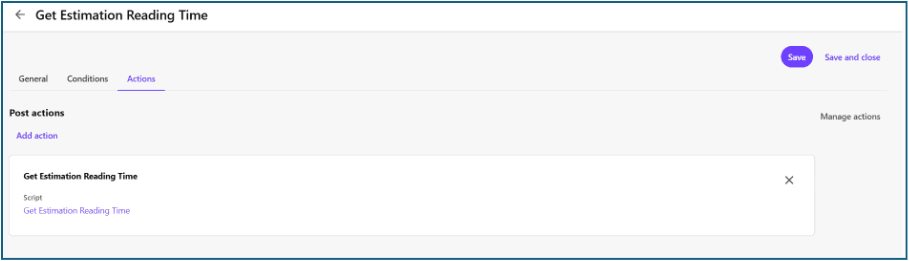
5. Save and close.
Seeing It in Action
Once the action and trigger are configured and activated, the entire process becomes automatic. Editors continue working as they normally would creating a new article, updating existing content, adding sections, or linking FAQs, carousel items, image cards, and other referenced content.
Whenever the article is saved, the trigger executes the action, which runs the script in the background.
The script collects text from all configured fields, retrieves content from referenced entities, removes HTML markup, counts the total words, calculates the estimated reading time, and updates the EstimatedReadingTime field before saving the entity.
As the content evolves over time, the reading time is recalculated automatically with every update, ensuring that the displayed value always reflects the latest version of the article.
Conclusion
Estimated reading time may seem like a small feature, but it significantly improves the reader's experience by setting clear expectations before they begin an article.
Automating this process in Sitecore Content Hub also removes the burden from content authors, eliminating manual updates and reducing the risk of outdated or inaccurate values.
The approach demonstrated in this article is both scalable and maintainable. By maintaining configurable lists of content fields and reference fields, the same script can support additional content types with minimal changes.
The core logic collecting content, cleaning HTML, counting words, calculating reading time, and updating the entity remains unchanged regardless of how your content model grows.
With a single script, action, and trigger working together, every new or updated article automatically receives an accurate Estimated Reading Time, allowing editors to focus on creating content while Sitecore Content Hub handles the rest.
FAQ
Q1. Why calculate reading time with a script instead of a manual field?
Manual values drift out of sync the moment content changes. A script derives the number from live content including linked entities every time the item is saved, so it's always accurate and editors never have to think about it.
Q2. How does the script know what kind of content item it's processing?
It walks the ContentTypeToContent relation up to the parent content-type definition and reads its Identifier (e.g., M.ContentType.BlogStyle). That value determines which fields to read and how to interpret any linked entities.
Q3. Why 120 words per minute and why round up with Math.Ceiling?
120 wpm is a deliberately conservative default since reference-heavy content is read more slowly; it's configurable per content type. Rounding up avoids under-promising a 121-word article shows as "2 mins," not "1 min."
Q4. How is the script triggered when content is created or updated?
An Action (type: Action Script) wraps the script, and a Trigger listens for Entity modification, scoped by a condition like Type contains "Blog," and fires the action as a background Post action on every save.
Q5. Does this approach scale to other content types or use cases?
Yes. The core logic is content-type agnostic adding a new type is just a new lookup entry with its own field lists. The same pattern (resolve type → collect fields → process) also generalizes to other computed fields, like completeness scores or SEO counts.

Mitesh Patel || Chief Technology Officer (CTO) | ADDACT
Sitecore AI Certified || XMCloud || OrderCloud Certified
Mitesh Patel is the Chief Technology Officer (CTO) at Addact with 12+ years of experience in enterprise CMS, digital experience platforms, and cloud-native application development. He specializes in Sitecore, Contentful, Strapi, Kentico, Umbraco, Contentstack, and .NET, helping organizations build scalable, secure, and future-ready digital solutions through modern CMS, headless architectures, AI-driven experiences, and cloud technologies.