Sitecore Content Hub: Creating Content Types for Content Hub
Published: 15 January 2026
In Sitecore Content Hub, structured content is everything. From marketing assets to blog articles and product data everything starts with a content type. Think of it as a blueprint that defines what kind of information your content will hold and how it connects to other pieces of content.
In this guide, we wi’ll walk through how to create a new content type in Sitecore Content Hub from scratch, explain what each configuration means, and share a few best practices to help you model content cleanly and effectively.
What Is a Content Type?
A content type in Sitecore Content Hub defines the structure and behaviour of a specific kind of content item (called an entity).
Each content type consists of:
- Fields – store data like text, numbers, assets, or relationships
- Field groups – organize related fields into logical sections
- Relations – connect your content type to others
- Permissions – control who can create, edit, or view content
If you’ve worked with Sitecore XM before, think of it as similar to templates — but with far more flexibility and cross-type linking.
Step-by-Step: Creating a New Content Type
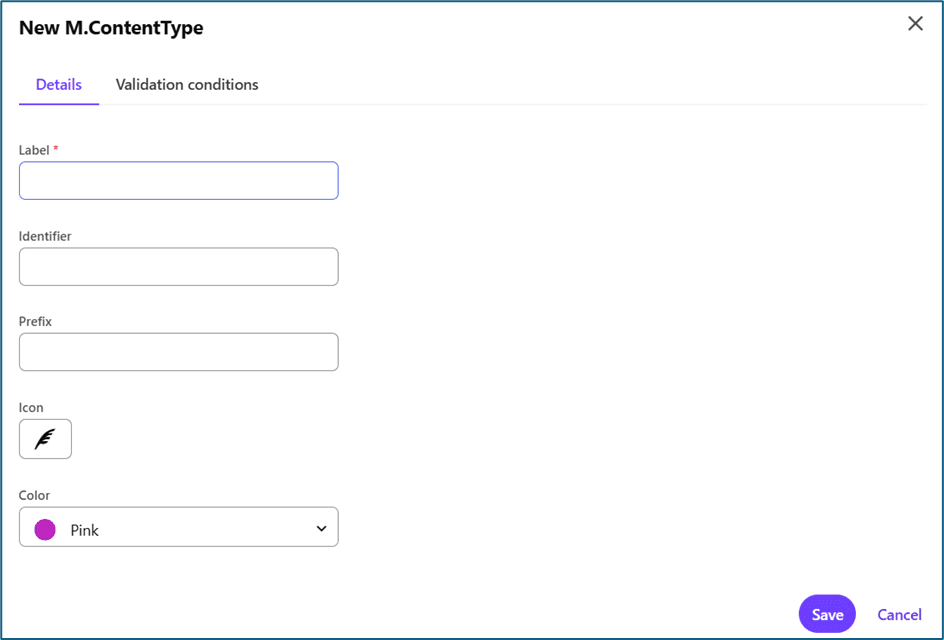
Step 1: Open Schema Management
- Log in to Sitecore Content Hub.
- Navigate to Manage → Content Types.
Click “Add New” to create a new type.
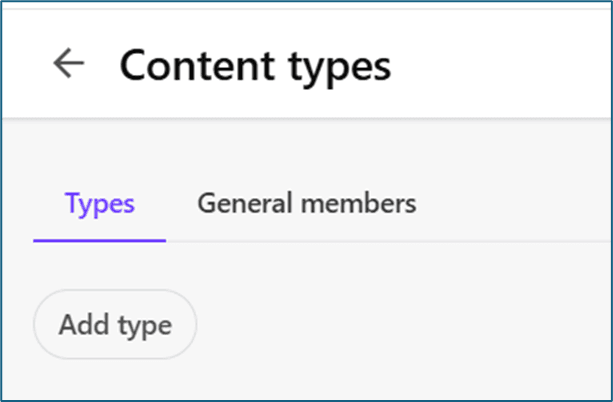
Step 2: Define Basic Details
- You’ll first be asked to define the basic details of your new content type:
- Identifier – internal system name (e.g., Blog, Product, Event)
- Label – how users will see it in the UI
- Prefix – will help to identify it’s fields
- Icon – makes the type easy to recognize visually
- Color – to set Icon Color
- Keep names simple and consistent for example, use singular nouns like “Article” instead of “Articles.”
- Conditions are optional. In which we can set content type behaviour conditions
Step 2: Define Basic Details
You’ll first be asked to define the basic details of your new content type:
• Identifier – internal system name (e.g., Blog, Product, Event)
• Label – how users will see it in the UI
• Prefix – will help to identify it’s fields
• Icon – makes the type easy to recognize visually
• Color – to set Icon Color
Keep names simple and consistent for example, use singular nouns like “Article” instead of “Articles.”
Conditions are optional. In which we can set content type behaviour conditions
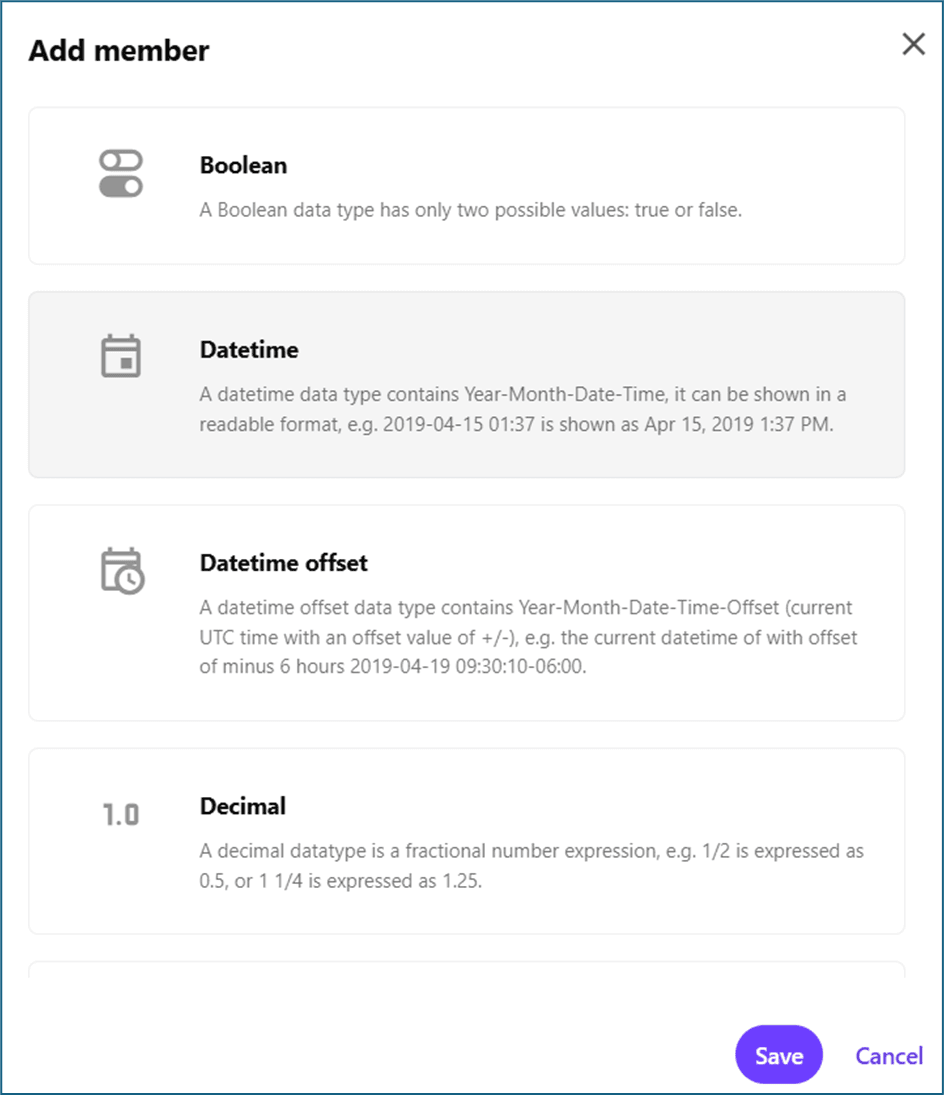
Step 3: Add Fields
Fields define the information that each entity of this type will store.
1. Go to the Fields tab.
2. Click Add Member and select the field type: we have different type of fields type like Rich text, Single-line text, Boolean, Datetime, Integer, Option list, Taxonomy etc.
3. Set properties:
• Name – internal system name (e.g., Blog, Product, Event)
• Label – how users will see it in the UI
In validation we can set different types of validations like required, character limit etc.
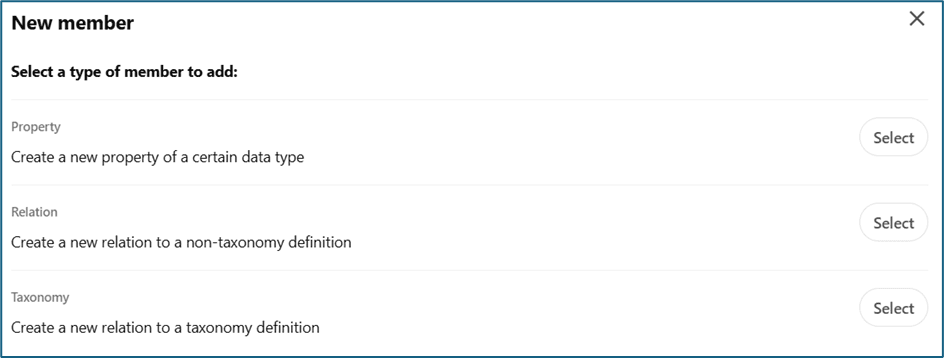
Step 4: set up in Schema
1. Navigate to Manage → Schema → M.Content.
2. Find newly created content type.
3. In them add new relation of Property, Relation and Taxonomy
Step 5: Configure Relationships
Relationships connect your content type to others.
For example, a Blog may have:
• A many-to-many relation with Tags
• A one-to-one relation with an Author
• A one-to-many relation with Related Articles
To configure:
1. Open the Relations tab.
2. Choose relation type (One-to-One, One-to-Many, Many-to-Many).
3. Define direction: Parent → Child or Child → Parent.
4. Select the related content type.
Relationships are powerful they allow you to build a connected content graph that drives personalization and reuse.
Step 5: Verify Your Content Type
Let’s confirm everything works:
1. Go to Content → Create.
2. Choose your new content type (e.g., Blog).
3. Fill out the fields and save.
4. Ensure validations and relationships behave as expected.
Best Practices
To keep your content model scalable and clean:
• Use clear, singular names (e.g., “Product,” not “Products”).
• Reuse field definitions, when possible, to keep consistency.
• Avoid large monolithic types – modular types are easier to manage.
Common Issues
Avoid these common issues when defining new content types:
• Changing field types after entities already exist (may cause data loss).
• Missing relationship configurations that break references.
• Overusing rich text fields where structured data would work better.

Meet Kanzariya || Team Lead
Senior Full-Stack Developer – Sitecore, Strapi & Headless CMS
Meet is a .NET and Sitecore professional at Addact with 6 years of experience, specializing in Sitecore XP, SXA, Content Hub, and CDP, and delivering scalable, personalized CMS solutions. His core skills include .NET Core development, SQL scripting, and technical documentation, enabling him to deliver reliable and high-performing digital platforms.