
Setting Up Sitecore 10.4 with Docker: Complete Developer Guide
Published: 26 March 2026
Introduction
Modern Sitecore development has moved far beyond manual installations. Configuring IIS, SQL Server, and Solr individually is time-consuming, error-prone, and difficult to standardize across teams.
With Docker, you can spin up a full Sitecore environment in minutes - consistent, scalable, and ready for enterprise-grade development.
This guide walks you through setting up Sitecore 10.4 using Docker, along with architecture insights and best practices
Why Docker for Sitecore?
Traditional setup challenges:
- Manual IIS + SQL Server configuration
- Solr and Identity Server dependency issues
- Environment mismatch between developers
Docker solves this by:
- ✅ One-command environment setup
- ✅ Consistent environments across teams
- ✅ Faster onboarding
- ✅ Cloud-ready architecture
Sitecore Docker Architecture Overview
A standard Sitecore Docker setup includes:
ServicePurposeCM (Content Management)Authoring environmentCD (Content Delivery)Public website deliverySQL ServerData storageSolrSearch & indexingIdentity ServerAuthenticationRendering HostHeadless frontend (Next.js, React)
Each service runs in its own container, communicating over Docker's internal network - mimicking real enterprise deployments .
Prerequisites
Before starting:
1. Install Docker Desktop
- Enable WSL2 backend
- Allocate 8–12 GB RAM
- Restart system
Verify:
docker --version2. Switch to Windows Containers (Critical)
Sitecore does NOT work on Linux containers.
Steps:
- Right-click Docker icon
- Click Switch to Windows Containers
- Restart Docker
Verify:
docker versionLook for:
OSType: windowsStep 1: Download Sitecore Docker Resources
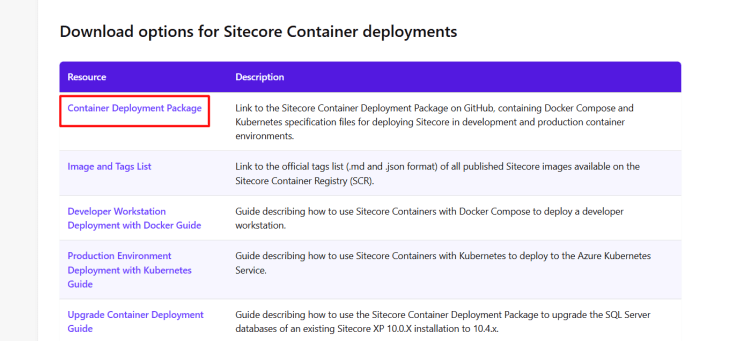
- Go to Sitecore Developer Portal
- Download:
- Sitecore Experience Platform 10.4
- Container Deployment Package
Step 2: Open and Prepare Project
Open the extracted repo in VS Code (Admin mode).
Navigate to:
\compose\ltsc2022\xp0
Your structure will look like:
docker/
├── docker-compose.yml
├── .env
├── build/
└── traefik/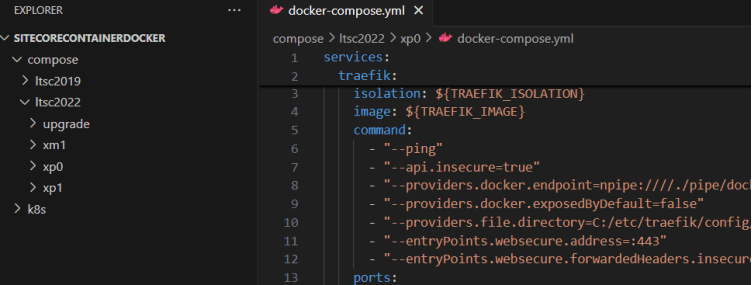
Step 3: Initialize Environment
Run:
.\compose-init.ps1 -LicenseXmlPath {local path}\license.xmlThis step:
- Configures environment
- Validates license
- Prepares containers
Step 4: Configure Environment Variables
Update .env file:
SITECORE_ADMIN_PASSWORD=YourStrongPassword
SITECORE_LICENSE=./license.xml
SQL_SA_PASSWORD=YourSQLPassword
This ensures:
- Secure configuration
- Environment portability
- No hardcoding (best practice)
Step 5: Start Sitecore Containers
Run:
docker-compose up -dThis will:
- Pull Sitecore images
- Build containers
- Start all services
Check status:
docker psStep 6: Access Sitecore
Once containers are ready:
Credentials:
Username: admin
Password: (from .env)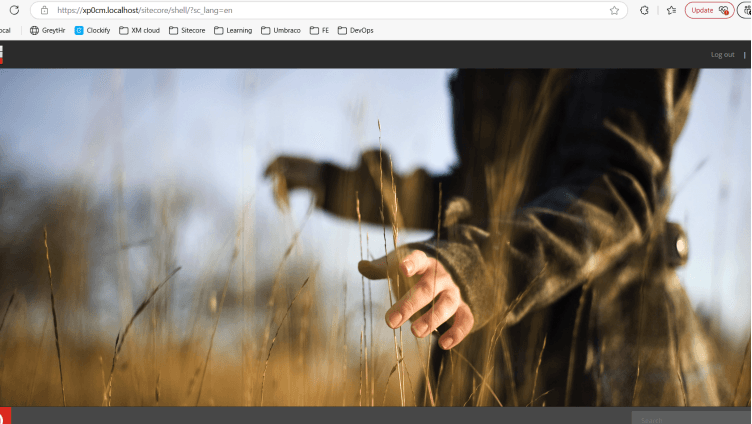
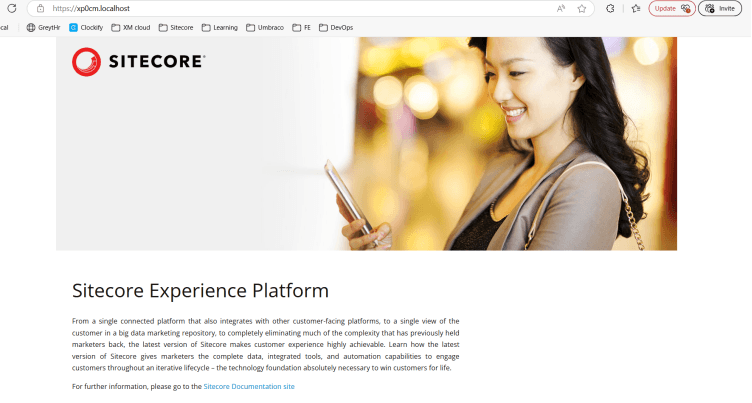
Your local Sitecore 10.4 instance is now running !
Troubleshooting Common Issues
Containers not starting
Check container logs using:docker logs <container_name>- Memory issues
Increase RAM allocation in Docker Desktop (recommended: 8–12 GB) - Port conflicts
Ensure IIS, SQL Server, or other services are not using the same ports - Reset environment
Remove containers and volumes using:
docker-compose down -v
Dhara Teli
Software Developer – Sitecore & .NET
Dhara is a Sitecore and .NET developer at Addact, specializing in Sitecore XM Cloud, Sitecore XP, SXA, ASP.NET MVC, C#, Web APIs, and GraphQL. She builds scalable, CMS-driven applications, develops Sitecore components, and delivers efficient, performance-focused digital solutions.