
How to Fetch GraphQL and REST API Responses from Sitecore AI
Published: 29 January 2026
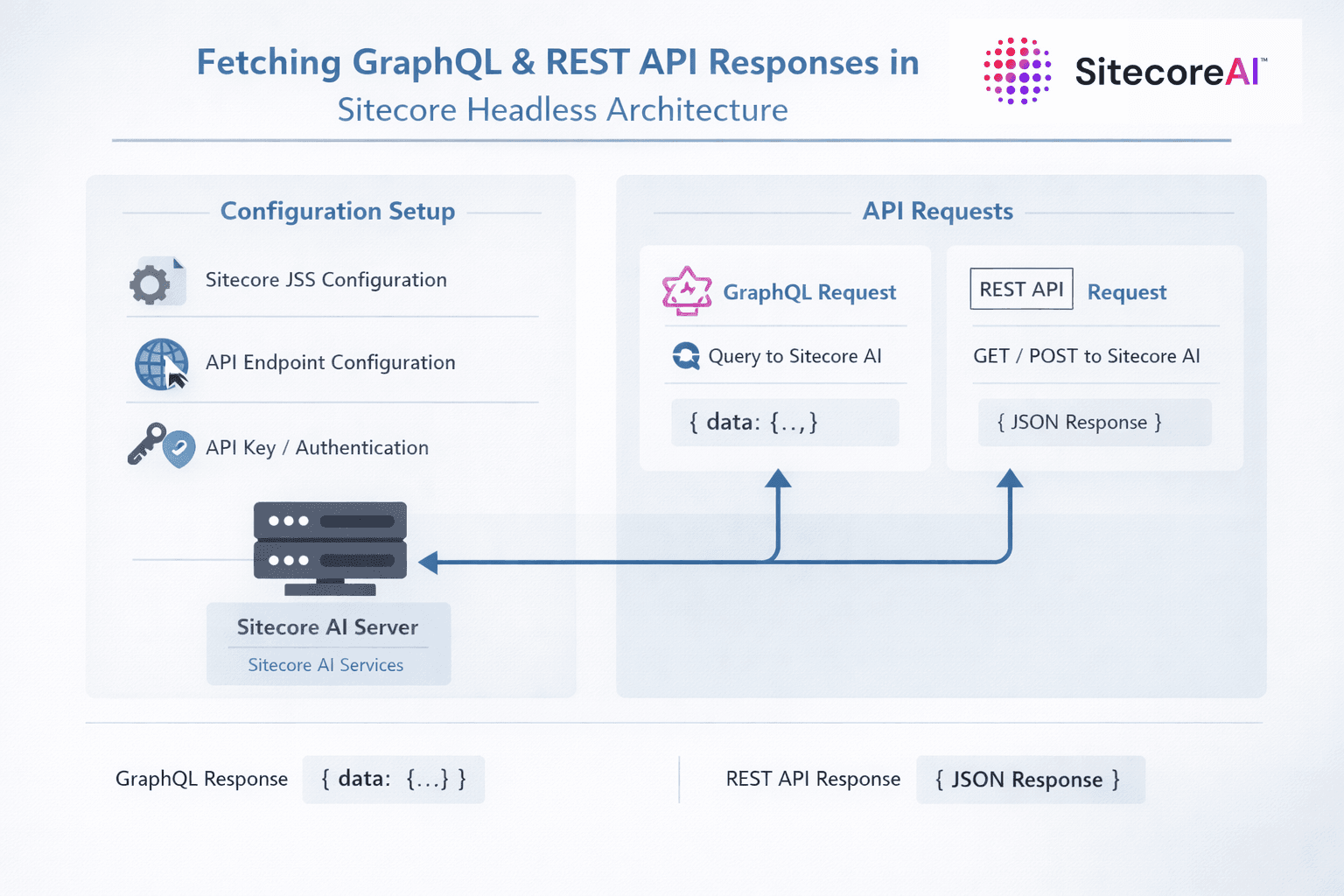
Fetch GraphQL and REST API Responses from Sitecore AI (Headless Architecture). What configurations are required for that?
Sitecore AI (Experience Management) Cloud enables organizations to deliver highly personalized and scalable digital experiences across multiple channels. When implemented in a headless architecture, the front-end presentation layer is decoupled from the back-end content management system.
This separation allows development teams to use modern front-end frameworks (such as Next.js) while Sitecore AI continues to manage content, personalization, and experience delivery independently.
To connect the front end and back end in a headless architecture, APIs play a critical role.
Sitecore provides robust APIs that allow developers to retrieve content and layout data from the cloud-hosted Experience Edge database. The two primary approaches are:
- GraphQL APIs
- REST APIs
Let’s explore both in detail.
Option 1: GraphQL API
What Is GraphQL?
GraphQL is a powerful query language for APIs that allows clients to request only the data they need, in a single request. Unlike REST APIs, which often return fixed payloads, GraphQL provides flexibility, efficiency, and improved performance - making it ideal for headless and composable architectures.
Accessing the GraphQL IDE
You can access the Sitecore GraphQL IDE at:
https://edge.sitecorecloud.io/api/graphql/ide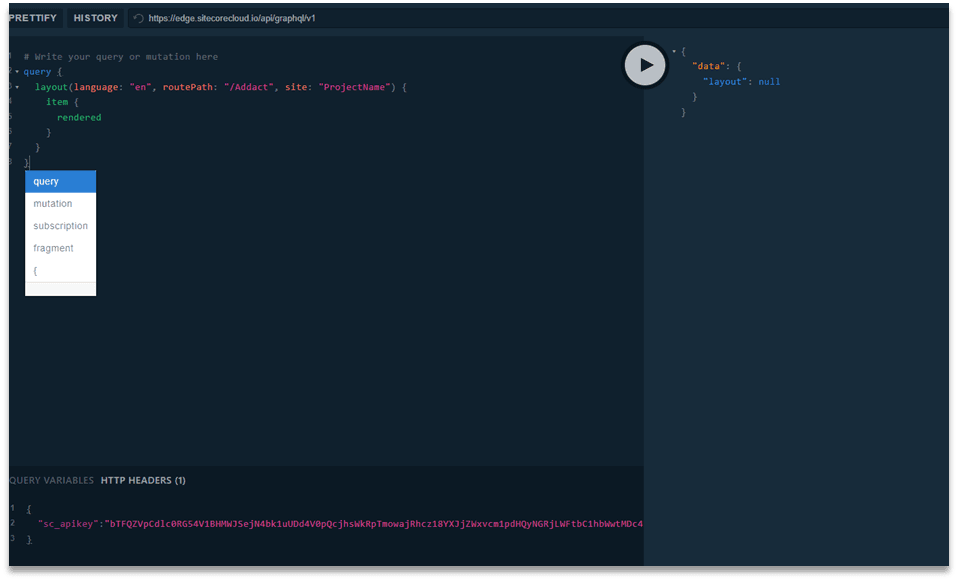
This interface allows you to explore schemas, write queries, and test responses directly against the Experience Edge.
(GraphQL Dashboard)
Required Configuration
Before executing any GraphQL query, you must configure the following:
1. GraphQL Endpoint
https://edge.sitecorecloud.io/api/graphql/v12. SC_API Key (Delivery API Token)
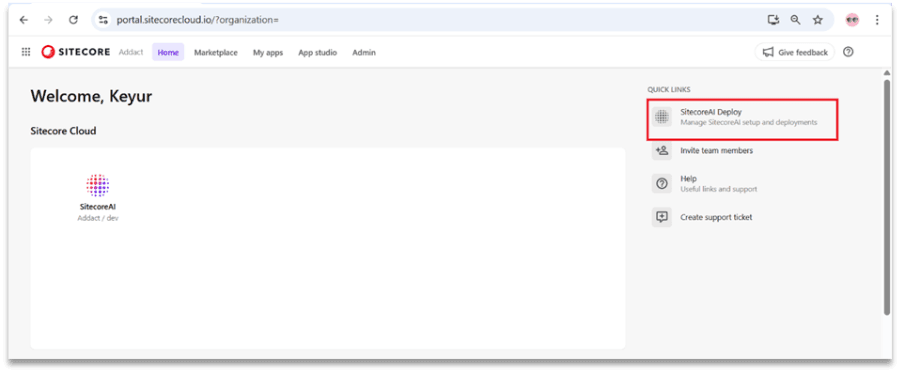
To obtain the sc_apikey:
- Log in to the Sitecore Cloud Portal
- Click Deploy from the left-hand navigation
You will be redirected to:
https://deploy.sitecorecloud.io/projects?organization=- Select your project (for example, Addact)
- Choose the required environment (e.g., UAT, Production, etc.)
- Click Details
- Open the Live GraphQL IDE (Experience Edge)
- Generate a Delivery API Token
Each environment has its own unique API key. Below are the images for your reference
( Step-By-Step):
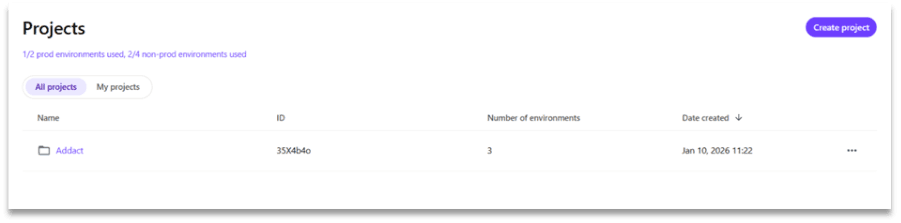
When you click on the project (here “Addact”) you will see all the environments created for the project.
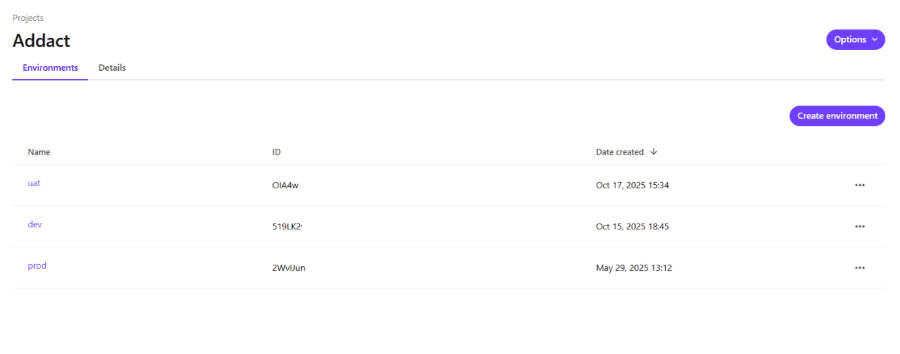
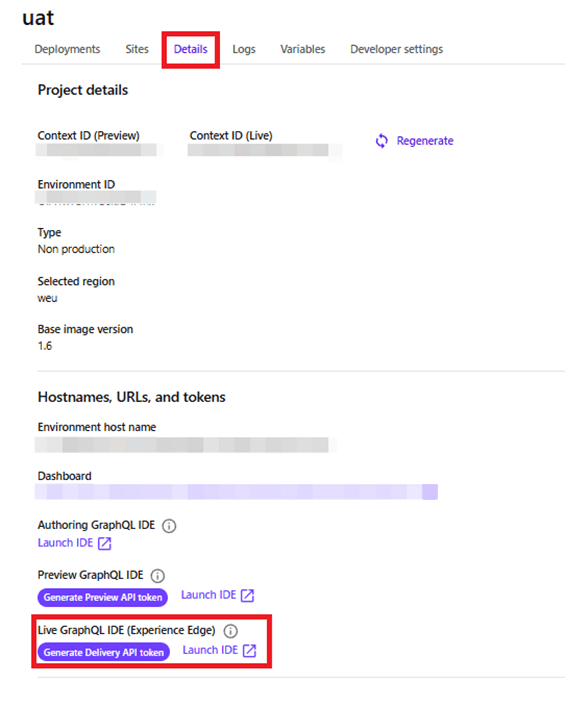
Let’s go with UAT, when you click on UAT you will see details button on the nav bar.
Once clicked, you will see you Live GraphQL IDE (Experience Edge).
You can click on generate delivery API token and get your “sc_apikey” value.
Configuring the GraphQL IDE
In the GraphQL IDE:
Add the following HTTP header:
sc_apikey: <YOUR_API_KEY>Once configured, you can start writing GraphQL queries to fetch content from your Sitecore page nodes.
In addition,
Preview GraphQL IDE vs Live GraphQL IDE (Experience Edge)
Understanding the difference between these two environments is critical:
Preview GraphQL IDE
- Fetches draft, unpublished, and in-progress content
- Reflects authoring changes immediately
- Used primarily by developers and content authors
- Ideal for validation and QA before publishing
Live GraphQL IDE (Experience Edge):
- Fetches only published content
- Served via the globally distributed Experience Edge
- Optimized for performance and scalability
- Intended for production use
- Does not expose unpublished or draft data
Integrating GraphQL with Next.js
On the Next.js side, add the following environment variable in your .env file (for example, in nextjs-starter or your project root):
NEXT_PUBLIC_SITECORE_API_KEY=<YOUR_API_KEY>After this configuration:
- Your Next.js application can consume data from the Sitecore GraphQL endpoint
- Content will render locally on localhost and scale seamlessly to other environments
Option 2: REST API
Overview of REST API Access
In addition to GraphQL, Sitecore AI also supports fetching content via REST APIs. While REST is less flexible than GraphQL, it can still be useful for specific use cases or legacy integrations.
Required Configuration for REST API:
To use the REST API, you need the following:
1. Sitecore Hosted Domain
This can be found under:
/sitecore/system/Settings/Services/Rendering Hosts2. Sitecore API Key
The API key is available at:
/sitecore/system/Settings/Services/API KeysREST API Endpoint Structure
Use the following URL pattern to fetch layout and content data:
<DOMAIN>/sitecore/api/layout/render/jss
?item=/
&sc_apikey=<API_KEY>
&sc_site=<SITE_NAME>
This endpoint returns layout and rendering data required by headless front-end applications.
Conclusion
To fetch data from the Sitecore AI Experience Edge database in a cloud-based headless architecture, you can choose between:
- GraphQL APIs – Recommended for modern, scalable, and performance-optimized applications
- REST APIs – Suitable for simpler or legacy integration scenarios
Both approaches are fully supported by Sitecore AI and integrate seamlessly with frameworks such as Next.js. Selecting the right API depends on your project architecture, performance needs, and development flexibility.

Keyur Nayi- Technical lead - ADDACT
Technical lead - ADDACT
Keyur is a Technical Lead at Addact with 9+ years of experience in enterprise CMS and software engineering. He is certified in Sitecore XM Cloud, OrderCloud, Sitecore 10 .NET, and SitecoreAI CMS for Developers (2025), specializing in scalable, cloud-ready and AI-driven implementations.
His technical stack includes ASP.NET/Core, C#, MVC, jQuery, and Azure/AWS, enabling high-performance, cross-platform digital solutions.