
Fixing Stuck GraphQL in Sitecore AI Local
Published: 27 March 2026

If you’ve been working with Sitecore AI local development, chances are you’ve hit this at least once:
You run a GraphQL query…
It loads…
Keeps loading…
And suddenly your localhost stops responding altogether
No error. No logs that clearly explain what went wrong. Just a frozen GraphQL request and a CM container that feels like it’s given up.
This problem is very common, and it’s usually not your GraphQL query. It’s almost always about memory and caching behaviour in the local Docker setup.
Let’s walk through what’s really happening and how you can fix it for good.
What’s Actually Going Wrong Behind the Scenes?
GraphQL in Sitecore AI is powerful, but it’s also cache-heavy by design. Every schema, query, and execution result can be cached to improve performance.
In cloud environments, this works great.
In local Docker environments, it can quietly become a problem.
Over time:
• GraphQL caches keep growing
• The CM container starts consuming more and more memory
• Docker eventually hits its memory limit
• GraphQL requests stop responding
• Localhost appears to “hang” or crash
Typical signs you’ll notice:
• GraphQL queries never finish
• GraphQL playground freezes
• Hitting a GraphQL endpoint crashes localhost
• CM container restarts or becomes unresponsive
• Docker Desktop shows high memory usage
If this sounds familiar, you’re in the right place.
Solution 1: Clear GraphQL Cache When Things Get Stuck
Sometimes, even with the right configuration, GraphQL can suddenly stop responding. When that happens, the cache may already be in a bad state.
Instead of restarting everything, try this first.
How to Clear the Cache
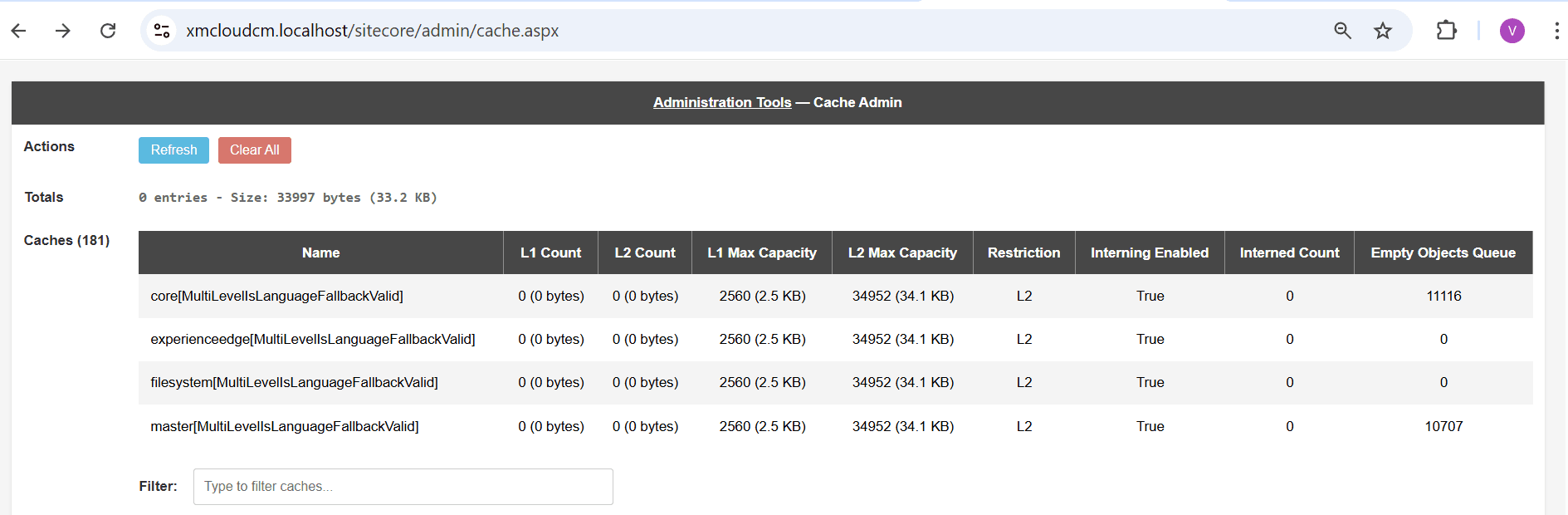
Open the Sitecore cache admin page:
https://xmcloudcm.localhost/sitecore/admin/cache.aspxThis often brings GraphQL back to life instantly.
It’s a great quick fix when:
• GraphQL was working earlier
• No config changes were made
• Localhost suddenly started hanging
Solution 2: Give the CM Container More Memory
This is the most important and most reliable fix.
By default, the CM container doesn’t have enough memory to handle large GraphQL caches during active development. Once the cache grows beyond the available memory, things start breaking in unpredictable ways.
What to Change
In your “docker-compose.override.yml”, update the cm section:
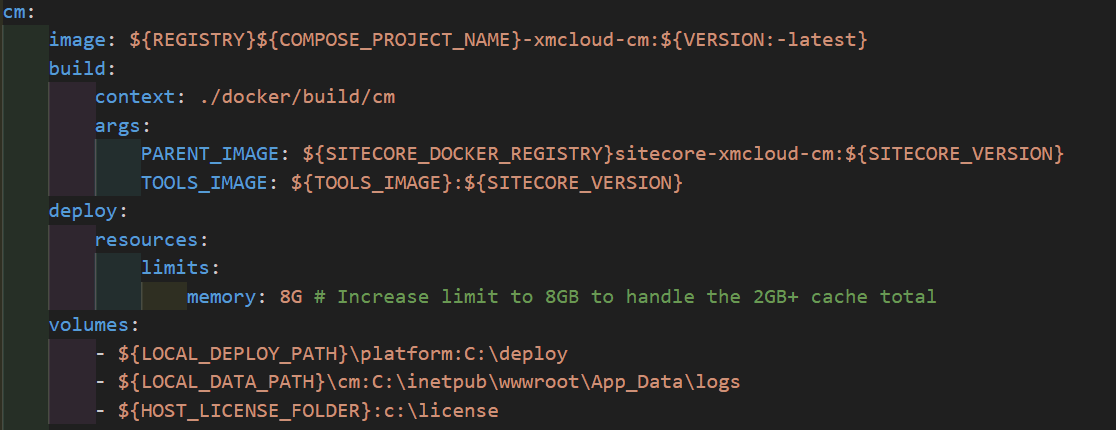
deploy:
 resources:
     limits:
       memory: 8G
Why This Helps
• GraphQL cache size can easily exceed 2GB
• Extra memory prevents container crashes
• GraphQL queries become stable again
• Overall Sitecore performance improves locally
If you’re working with:
• Large content trees
• Multiple sites
• Multiple rendering hosts
• Long-running local environments
…this change is almost mandatory.
After updating the file, restart Docker to apply the new memory limit.
Solution 3: Disable GraphQL Cache for Local Development
For local development, you usually don’t need aggressive GraphQL caching at all. In fact, it often causes more problems than it solves.
Disabling the cache can dramatically improve stability.
What to Add
Add this environment variable to your CM container:
SITECORE_GRAPHQL_DISABLE_CACHE: 'true'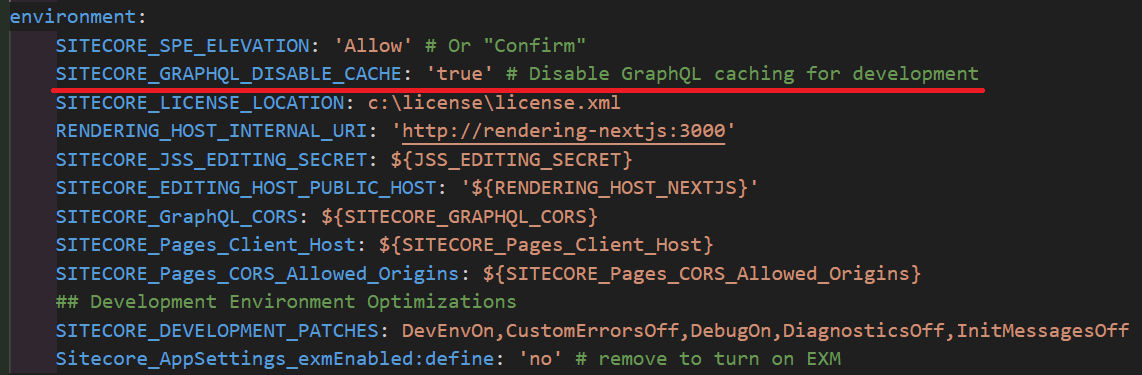
What You Gain
• Much lower memory usage
• No cache buildup over time
• More predictable GraphQL behaviour
• Fewer “random” freezes
This is especially helpful when you’re actively developing and frequently changing schemas, components, or content.
Important:
Only use this in local or development environments.
GraphQL caching should stay enabled in production.
A Few Best Practices That Save a Lot of Headache
After dealing with this issue across multiple Sitecore AI setups, a few habits really help:
• Always allocate enough memory to Docker
• Keep an eye on memory usage in Docker Desktop
• Disable GraphQL caching locally if possible
• Clear Sitecore caches during long dev sessions
• Restart Docker occasionally instead of leaving it running for days
These small steps go a long way in keeping your local environment healthy.
Final Thoughts
When GraphQL becomes slow or unresponsive in Sitecore AI local development, it’s easy to assume something is wrong with your query or schema.
In reality, it’s almost always:
• Memory limits
• GraphQL cache behavior
• Long-running Docker containers
By:
• Increasing CM container memory
• Disabling GraphQL cache locally
• Clearing caches when needed
you can avoid most of these issues entirely.
Happy building :)

Vikesh Bhavsar
Senior Software Engineer – SitecoreAI & SXA
Vikesh is a Sitecore professional at Addact with 4 years of experience, specializing in SitecoreAI, Sitecore XP, SXA, Headless JSS, and ASP.NET MVC. He focuses on building scalable, performance-driven CMS solutions and Sitecore Page Builder compatible components for personalized digital experiences.