
Killing the Solr & IIS Toggle Hustle: How I Engineered a Custom Windows Service Manager for the Sitecore Community
Published: 31 May 2026
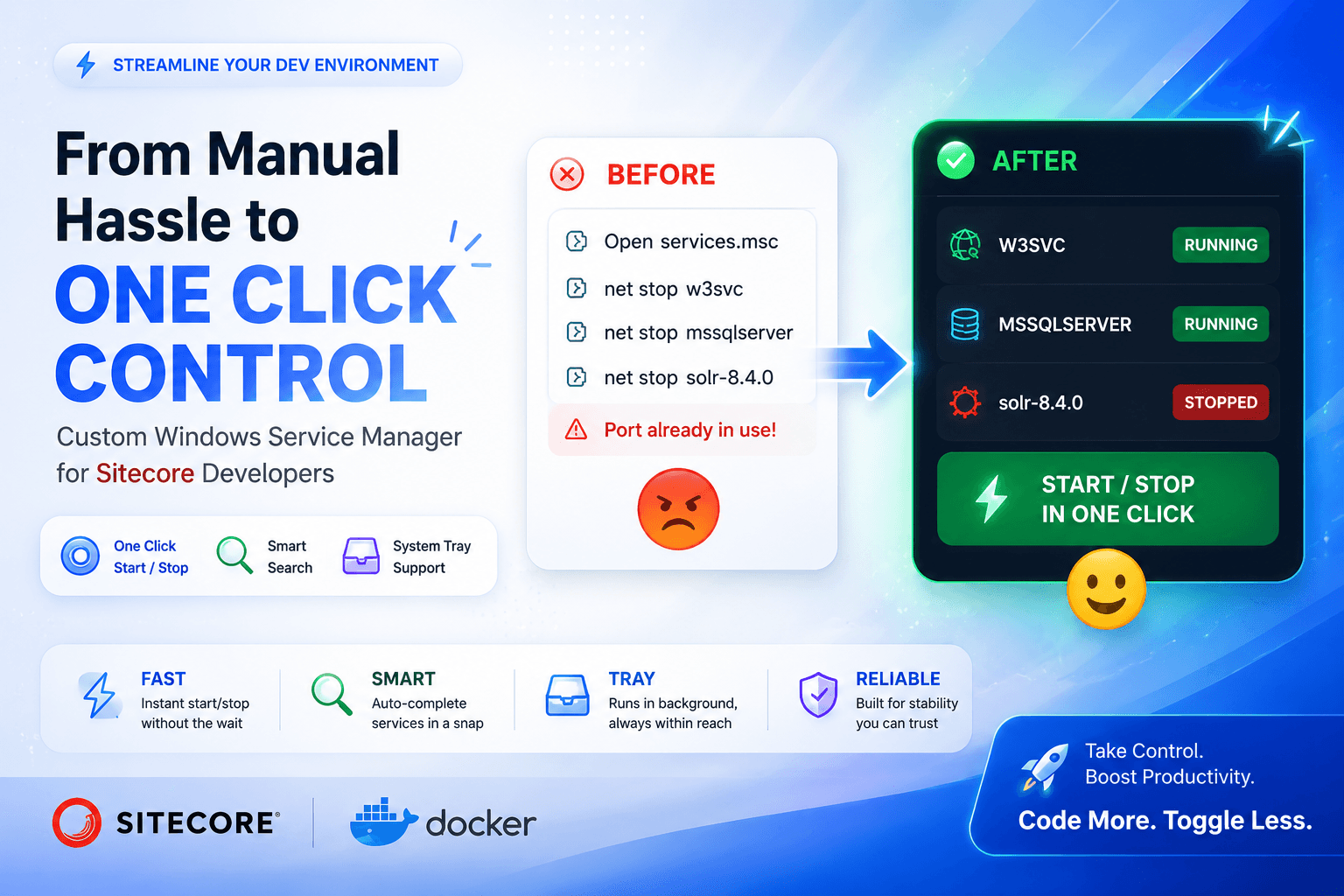
A first-person developer deep dive on overcoming context-switching friction between legacy Sitecore MVC and modern XM Cloud Docker workloads with a thread-safe, open-source utility.
If you are a Sitecore developer, you know the exact context-switching headache I live through every single day.
On any given morning, my local workstation is a battleground of overlapping development environments. I might start my day diving deep into a legacy Sitecore MVC (XP/XM) project. This requires running a local IIS web server (W3SVC), a dedicated local SQL Server database instance (MSSQLSERVER), and a specific local Solr service version (like solr-8.4.0 running on port 8983).
But by afternoon, I am context-switching to a modern Sitecore XM Cloud or Next.js Headless project.
This modern setup spins up local Docker containers that bind to those exact same SQL and Solr ports. If I leave my local services running, Docker crashes on launch. If I shut down Docker but forget to restart my local services, my MVC debugging fails.
This context-switching leads to a daily, repetitive developer ritual that completely kills my momentum:
- Open an elevated PowerShell terminal or search for services.msc.
- Type net stop w3svc and net stop mssqlserver.
- Try to remember the exact, long service name of the Solr instance I need to toggle off.
- Deal with port conflict errors when Docker fails, or wait in frustration while a slow system service freezes my terminal.
It was a slow, repetitive hurdle. I wanted my focus back on writing code, not toggling background tasks.
As part of my Sitecore journey, I wanted to create something of true value for the community — a tool that directly improves our daily Developer Experience (DX). So, I decided to build and open-source ServiceManager — a modern, high-performance Windows desktop application designed specifically to streamline this local service control loop for the Sitecore developer community.
Designing a Modern Developer Dashboard
I wanted a utility that felt premium and acted instantly. Rather than using standard Windows MMC consoles that look like they belong in Windows 95, I engineered a customized dark theme with structured bordered cards, highlighted inputs, and visual state indicators.
Here is what the interface looks like running on my workstation:
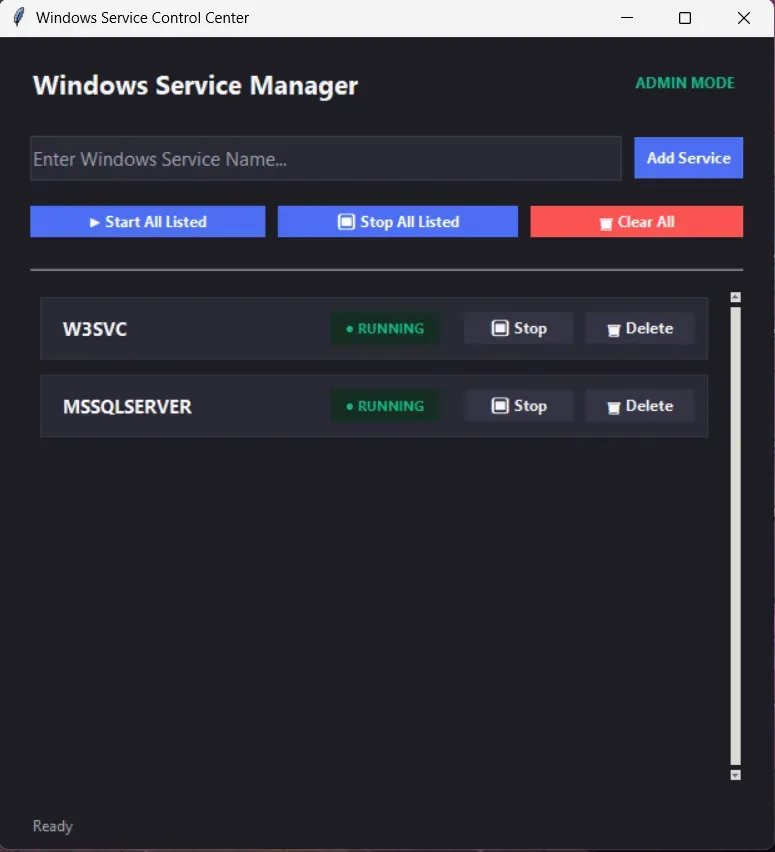
My local dashboard: Custom emerald capsules showing active Sitecore services in real-time. Rather than fighting CLI delays, I now have full, instant control of my environment.
Why ServiceManager is a Game-Changer for Sitecore DX
Here is a breakdown of the key features I programmed under the hood to solve our specific developer needs:
1. Asynchronous Worker Threads (Zero UI Freezing)
Toggling a Solr search instance or an IIS web server can take anywhere from 5 to 15 seconds. If you run these queries on the primary GUI thread, the user interface locks up.
To fix this, I offloaded all Windows service control commands (sc start, sc stop) to independent, background daemon worker threads. The GUI continues running smoothly at a locked 120 FPS.
2. State-of-the-Art Visual Capsules
Rather than looking at boring lines of text, you get clear, padded status pill badges with semi-transparent background tints:
- RUNNING (Emerald Green): Indicates my local IIS and SQL Server are fully active for Sitecore MVC.
- STOPPED (Coral Red): Confirms my Solr ports are clear and ready to be bound by XM Cloud Docker containers.
- NOT FOUND (Slate Gray): Safely flags any typed services that do not exist on the machine.
3. Smart Autocomplete & Fuzzy Match Search
Can’t remember the exact name of a specific Solr service or a custom database instance? If you type a partial keyword like solr and press "Add Service", ServiceManager queries the Windows Service Control Manager in under 50ms, launching a clean modal dialog listing all matching services (e.g., solr8983-solr-8.4.0) so you can select the correct one with a single click.
4. Silent Background Monitoring (System Tray)
Keep your Windows taskbar clean! Clicking the standard close button (X) hides the main window, minimizing the application to the Windows System Tray (Hidden Icons). It continues running silently in the background, utilizing a non-blocking thread to manage services. Double-clicking the tray icon restores the window instantly, while right-clicking opens a quick context menu.
🛡️ Developer Pro-Tip: The application automatically requests Administrator privileges (UAC elevation) on launch. This ensures that every start, stop, and query command succeeds natively without needing separate administrative command prompt wrappers!
How to Integrate it into Your Workflow
I have open-sourced the entire project and built a fully packaged installer setup wizard to make sharing this with other Sitecore developers as simple as possible.
Step 1: Standard Installation
- Go to the ServiceManager Releases page on my GitHub.
- Download and run ServiceManagerSetup.exe.
- The installer will automatically configure your desktop shortcut, start menu folders, and UAC elevation profiles.
Step 2: Configure Your Sitecore List
Once launched, type the service names you use daily and add them to your card list:
- W3SVC (IIS Web Server)
- MSSQLSERVER (Local SQL Server)
- solr-8.4.0 (or whichever Solr service version your Sitecore MVC project targets)
Now, when you need to jump between an XM Cloud Docker setup and a legacy Sitecore MVC project, you can stop or start all overlapping workloads with one single, highly satisfying click!
Open Source & Code Customization
This project is built under the MIT License and is 100% open-source. For developers who want to inspect the source code, adjust the Tkinter themes, or build the source code on their own machines using PyInstaller and Inno Setup, all source files are fully organized and available:
👉 GitHub Repository: dhruvil9033/windows-service-manager
If this utility saves you from the daily Solr and IIS start/stop hustle, feel free to star the repository, share it with your Sitecore team, and let me know your thoughts in the comments!
If you want to contribute, feel free to submit a Pull Request — let’s make our local DX better, together!
Happy Sitecore debugging!

Dhruvil Gajera || Senior Software Engineer
Senior Software Engineer – SitecoreAI & XM Cloud
Dhruvil is a Sitecore professional with 4+ years of experience specializing in SitecoreAI, XM Cloud, Sitecore XP, and SXA. He builds scalable, headless, and AI-enabled digital experience platforms using .NET, Next.js, and modern DevOps practices.
With hands-on expertise in multisite architecture, component-driven development, CI/CD pipelines, and cloud deployments, Dhruvil focuses on delivering high-performance, enterprise-ready CMS solutions aligned with composable DXP strategies.