Automating Sitecore Development: A Guide to Figma MCP + Claude AI
Published: 27 April 2026
The Figma MCP + Sitecore MCP + Claude AI integration eliminates every manual step. By connecting Claude AI to both Figma and Sitecore through the Model Context Protocol (MCP), and adding Chrome MCP tools for browser-based testing, the entire workflow from design to deployed, tested component becomes fully automated.
INTRODUCTION TO MCP (MODEL CONTEXT PROTOCOL)
What is MCP?
MCP is an open protocol that helps AI assistants connect with external tools, data sources, and services. It acts like a common language, allowing AI models to easily interact with different systems in a smooth and consistent way.
How It Works in This Demo:
Figma MCP Server: AI reads component designs directly from Figma.
Sitecore MCP Server: Develop the component into Sitecore CMS without manual work.
Project Structure:
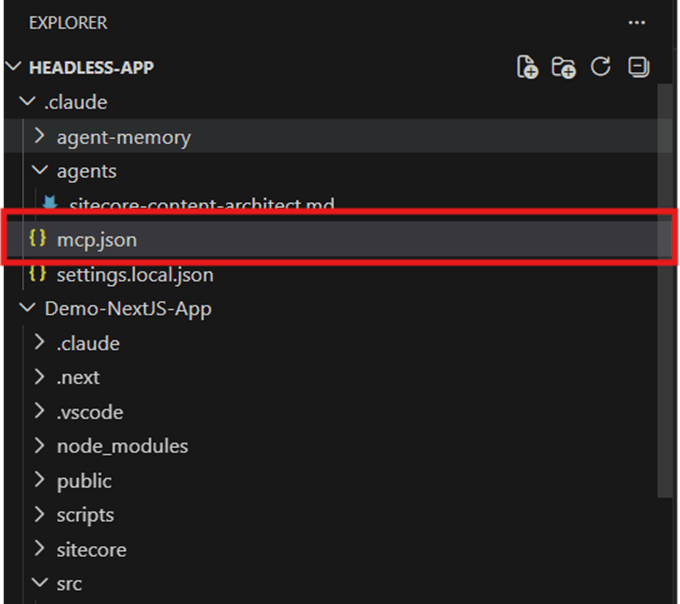
Right now, my project structure is look like this. I have created one MCP.JSON file where our all configuration of MCP will take place. Here, I have created MCP.JSON at root level outside of my project.
Root Folder: HEADLESS-APP à MCP.JSON File
Project Folder: Demo-NextJS-App
FIGMA MCP SERVER:
The Figma MCP Server allows Claude AI to directly access your Figma design files in a programmatic way. It can read details like component structure, design tokens, typography, spacing, and assets using the Figma REST API.
Once you enable Dev Mode in Figma, you’ll see an MCP section appear in the left panel, just like in the screenshot below.
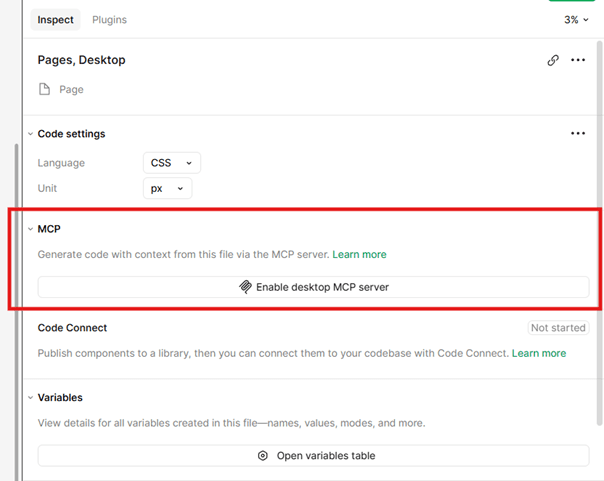
Once you click on “Enable Desktop MCP Server,” a popup will appear with a link like: http://127.0.0.1:3845/mcp. Copy this link; your Figma MCP server is now running and listening on that port.
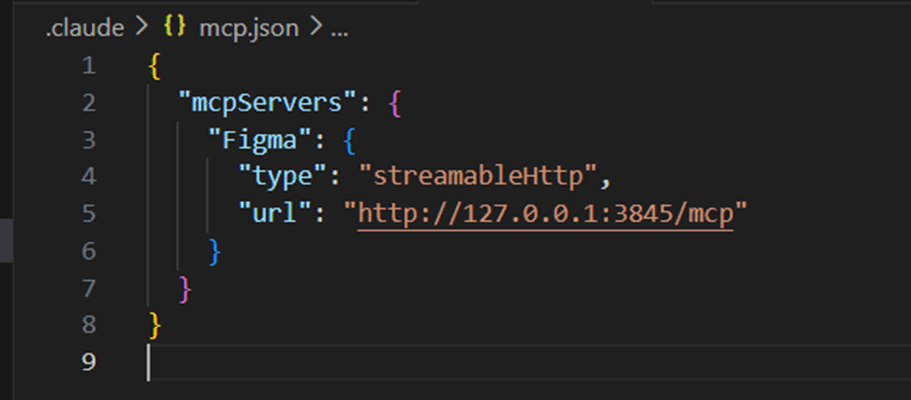
Next, go to the MCP.JSON file in your project’s root folder and paste this URL there, as shown in the screenshot below.
Once setup is complete, select any frame or component in Figma and ask your AI agent (e.g., Claude Code) to fetch it. If the design appears in the chat, your MCP connection is working properly.
What it Does:
- Connects AI tools directly to Figma design files via MCP protocol.
- Reads component structure, styles, spacing, typography, and assets from Figma.
- Extracts design tokens, colours, and layout specifications automatically.
Key Benefits:
- Design-to-Code Accuracy
- No Manual Handoff
- Faster Development
SITECORE MCP SERVER:
The Sitecore MCP Server is a module that runs with your Sitecore instance and exposes its API to Claude AI. It allows Claude to programmatically create templates, register renderings, configure placeholders, and manage content items.
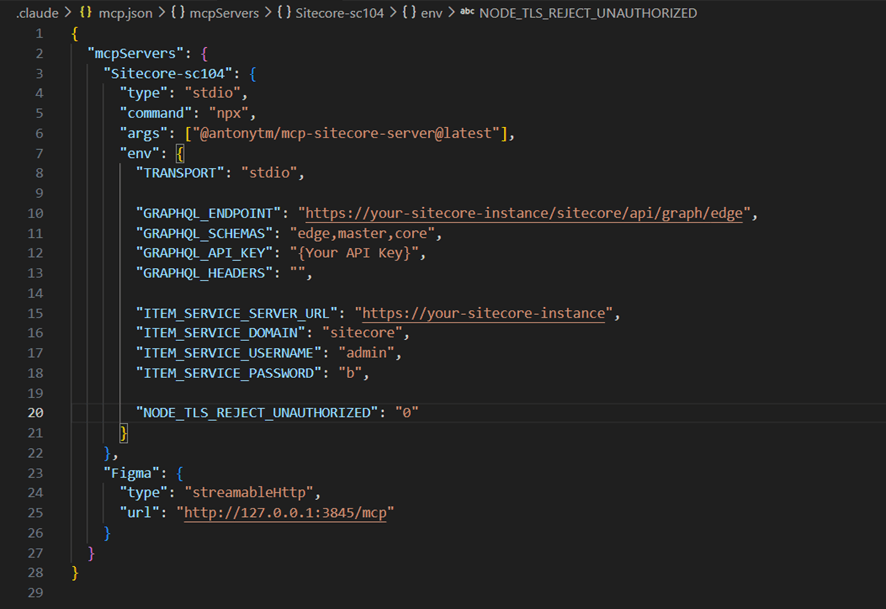
Add the configuration (as shown in the screenshot) to the same MCP.JSON file.
• type: stdio → Uses standard input/output for communication between the MCP server and the agent
• command: npx → Runs the Node package
• args → Specifies the NPM package to run (e.g., @antonytm/mcp-sitecore-server@latest)
• TRANSPORT → Defines the protocol (stdio or sse); use stdio by default
• env → Contains environment variables
• NODE_TLS_REJECT_UNAUTHORIZED: 0 → To ignore the certification error in site (for local site only)
Note: You can check the full blog of Anton NPM package from here.
What it Does:
• Connects AI tools to Sitecore CMS for direct content and component management.
• Creates templates, renderings, and content items in Sitecore programmatically.
• Manages presentation details, layouts, and placeholder settings automatically.
Key Benefits:
• End-to-End Automation
• Consistent Structure
• Reduced Errors
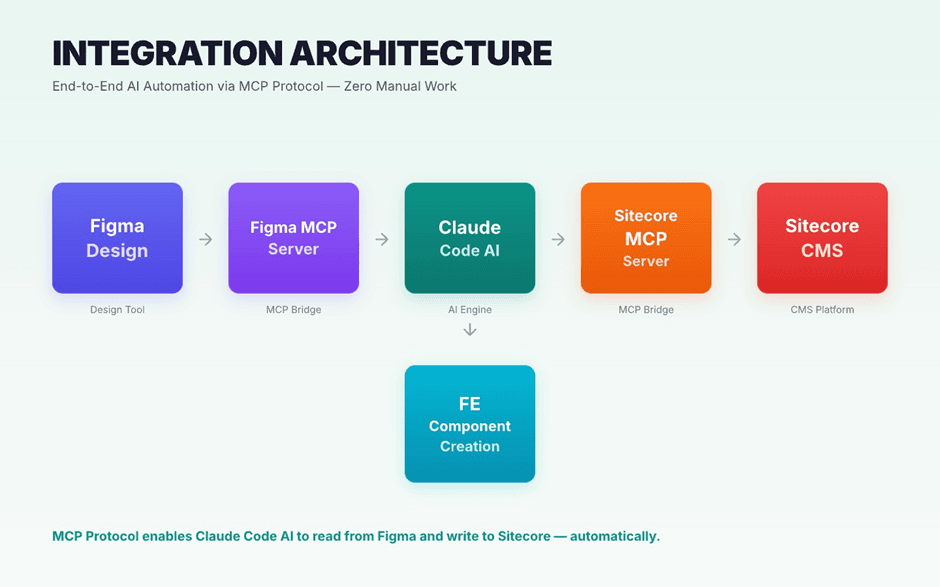
In the image above, you can clearly see the overall structure of the setup.
CHROME MCP SERVER:
Chrome MCP tools complete the loop by allowing Claude to verify its own work in a live browser. After deploying a component to Sitecore, it can automatically open the page, capture a screenshot, inspect the DOM, check for console errors, and even run a Lighthouse audit, all on its own.
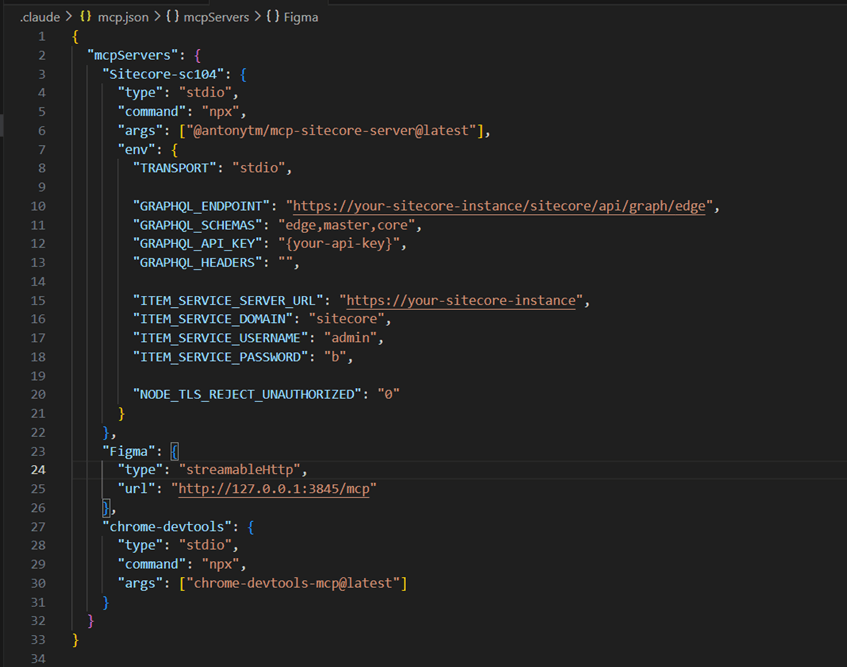
Great! All the necessary configurations are now in place to automate your development workflow.
To create a component in both Sitecore and on the code side, I’ve prepared a simple yet effective prompt below. You can use it as a reference and tweak it based on your needs.
• Get the selected Figma frame and treat it as a new component: Video Component
• Analyze it to identify required content fields
• Understand the existing Sitecore structure
• Reuse any existing component if it meets the requirements
• Create a Sitecore datasource template and rendering if needed
• Use content from Figma or add dummy content; if images are missing, download similar ones (same dimensions) and upload them to the Sitecore Media Library in the appropriate folder
• Add the rendering to the About Us page
• Use Chrome MCP DevTools to verify the API response (non-GraphQL)
• Create the Next.js component following the proper structure
• Verify via Chrome MCP DevTools that the component appears on the page and matches the Figma design; fix any discrepancies
Conclusion
By connecting Claude AI with Figma, Sitecore, and Chrome using MCP, the entire workflow from design to deployment and testing, becomes smooth and automated. What used to take hours of back-and-forth between designers, developers, and CMS teams can now be done in just minutes with a single, well-written prompt.
MCP isn’t just about saving time, it’s changing the way we build and manage modern web applications.

Kishan Patel
Software Developer || Sitecore Specialist
Sitecore developer at Addact with 4 years of experience, specializing in Sitecore AI/Sitecore XM Cloud, ASP.NET, and headless technologies. Works with MVC, Docker, GraphQL, and Next.js to deliver scalable, high-performance, and CMS-driven digital solutions. Connect at kishan@addact.net.